Blocking a contact so they can't book
Stop an email address or phone number being used to book with you, and know exactly what a block leaves running.
4 min read
When you have decided somebody is no longer a customer
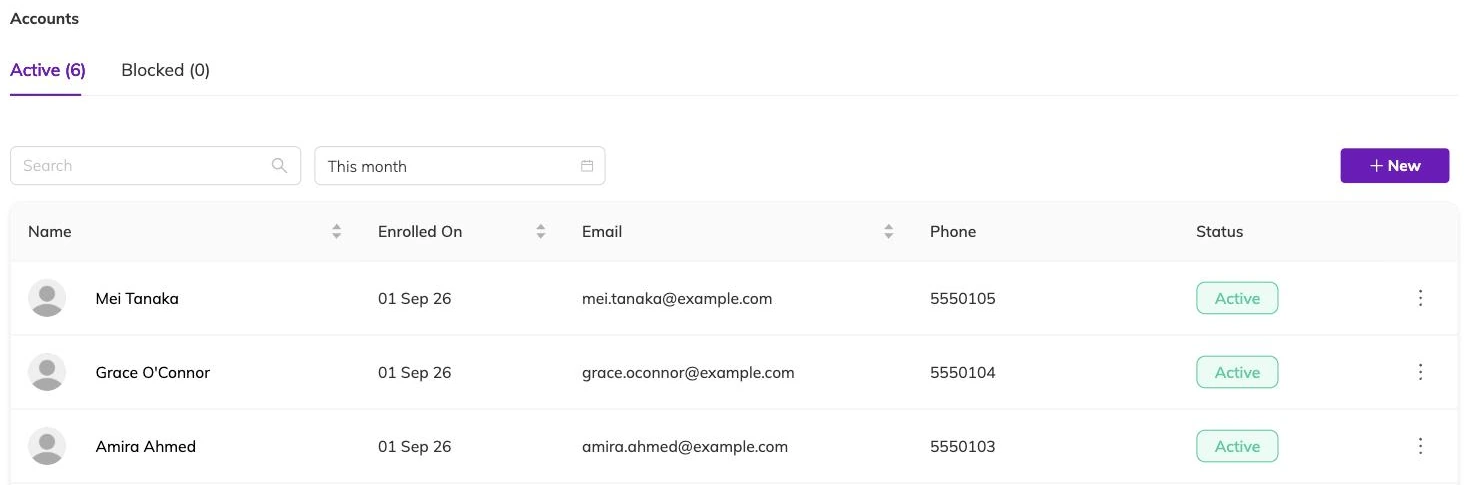
Someone has been asked not to come back and has booked again anyway. Or a parent's behaviour has ended the relationship and you would rather not depend on whoever is on reception recognising the name. A block is what stops the booking going through.
It works on contact details, not on people. An email address and a phone number can be blocked; a name cannot. Someone who returns with a new email address and a new phone number is a new contact as far as Bookingo is concerned. Block both details where you hold both, because blocking one leaves the other route open.
What you need to add one
Bookingo records who added the block and when, so you do not need to write that into the note yourself. Phone numbers are matched leniently: a number blocked with its country code still matches the same number entered without one.
- An email address, a phone number, or both. Either on its own is enough to save the block.
- A note saying why. It is optional. Without it, the next person to read the list has no idea what happened.
Everyone sharing those details is blocked
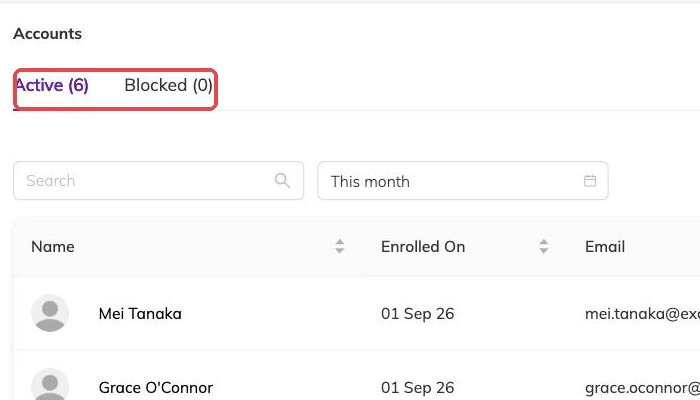
Before you confirm, Bookingo looks the details up and lists every family using them, with the number of children on each and how many upcoming bookings they hold. Every family on that list is blocked, not only the first one.
Read the list rather than clicking past it. Two households sharing one mobile number happens more than you would expect, and blocking that number takes both out. The block also covers your whole business rather than the location you happen to be working in, which is worth knowing if you run more than one site — see Running multiple locations.
Blocking cancels nothing
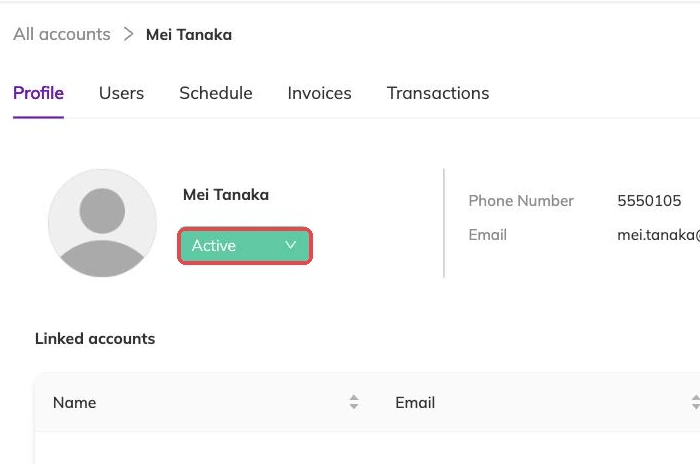
This is the part that catches people out. The family disappears from the booking side of things while still occupying places in your sessions, and the gap only surfaces when somebody else cannot get in. If you are blocking a family mid-term, deal with their bookings in the same sitting.
What the family experiences
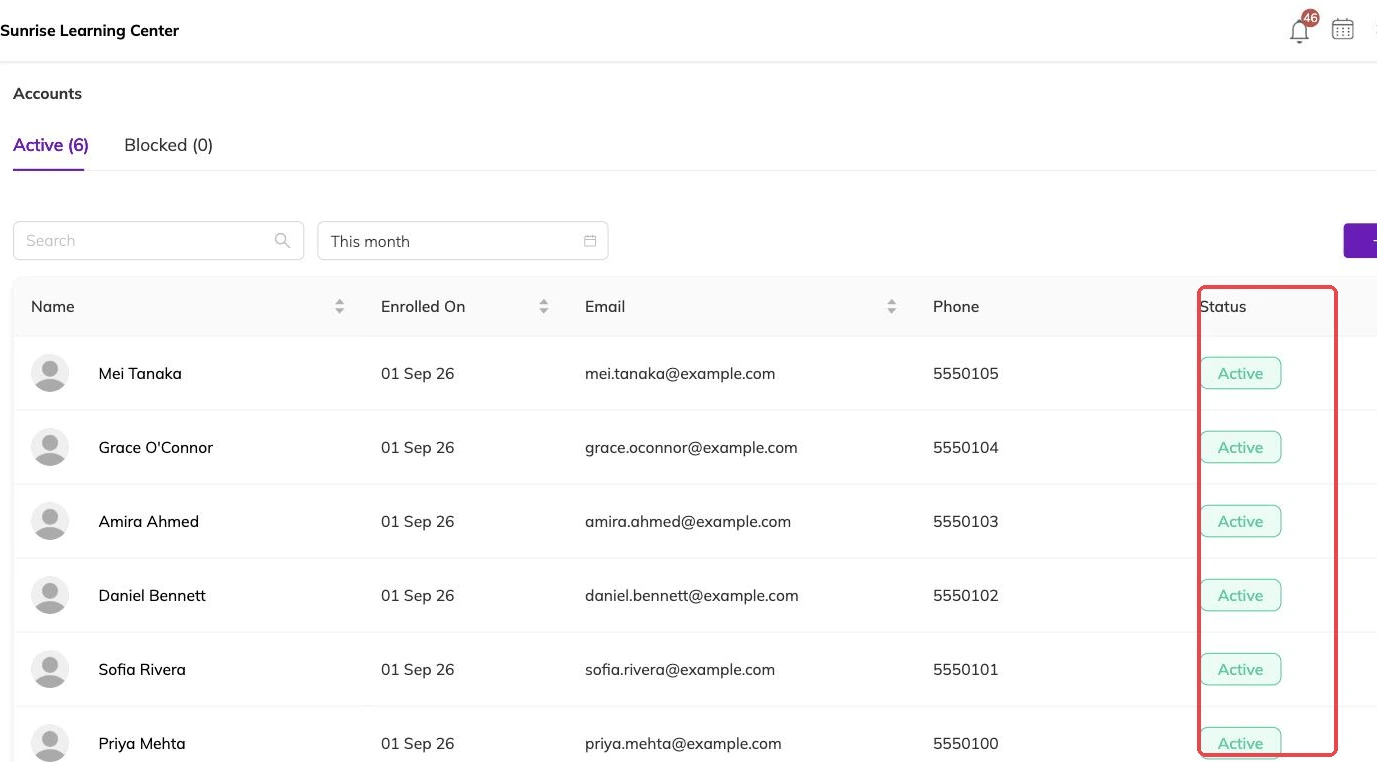
The family's record is marked as blocked, and anyone signed in to the parent app is signed out there and then. The account holder is told their account has been blocked, and your staff are notified too, so nobody has to work out why a family has gone quiet.
From then on, any booking attempt using that email address or phone number is refused with a message telling them to contact the centre. The refusal does not care who is doing the booking. Your own staff cannot book them back in from the admin side, and the same details cannot be used to start a fresh family record.
Unblocking
Take the entry off the blocklist and every family it caught becomes active again. Children, past bookings and history are all still there — nothing was deleted to begin with.
One thing to watch: unblocking sets those families to active whether or not they were active beforehand. A family that was already inactive when you blocked them comes back active, so check them afterwards if that matters.
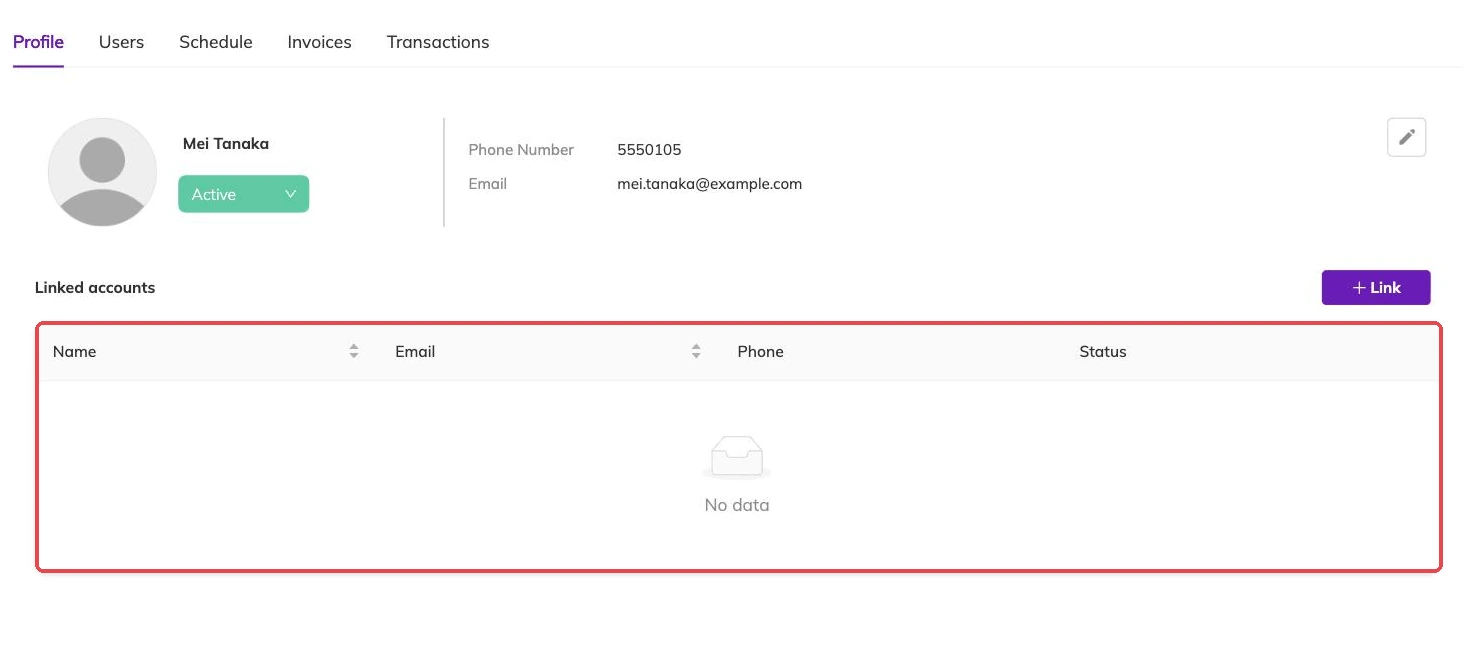
While the block stands you cannot make the family active from their own record. The blocklist entry is what controls it, and Bookingo will tell you so if you try. Remove the block first, then make whatever change you need on the family.
More on families and children
Adding a family without creating a duplicate
What to put on a family record when you add one yourself, and what Bookingo does when the email address or phone number already belongs to someone.
Giving two households access to the same child
Link two family records so both adults can book for the same child, without the child existing twice and taking two places.
Participants and family accounts
How children and families are structured, what parents can do themselves, and how to avoid duplicate records.