Booking on a family's behalf
Take a booking at the desk or over the phone: what you need in front of you, what saving sets off straight away, and why a booking gets refused.
3 min read
What you need in front of you
A parent is at the desk and wants their child in Tuesday's class. You can do the whole thing for them, from the same programmes, batches and dates they would have picked online. They never have to open anything.
Every booking sits under a family record, so the family has to exist before you can book against it. If they are new to you, create them first — Participants and family accounts covers that — and come back.
- The family record, with the email address and phone number you want confirmations going to
- The children being booked, already on that family (your centre may label them students, members or something else)
- The programme and the batch — the batch is where the centre, the days and the times come from
- Which dates they want, where the batch leaves that open
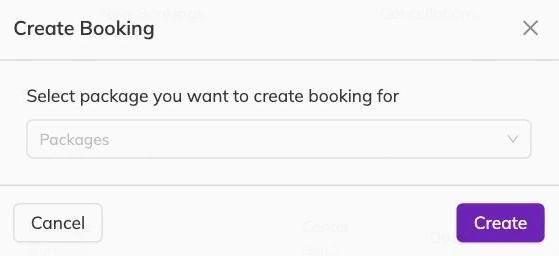
Making the booking
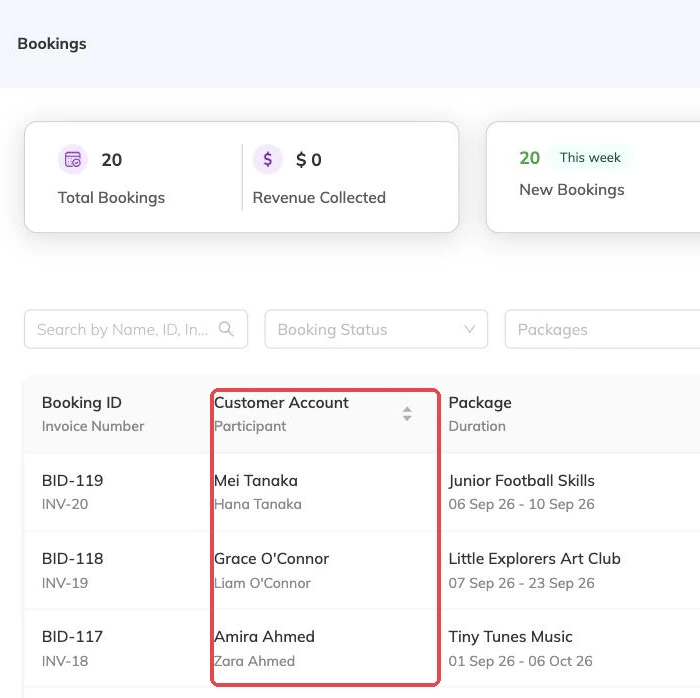
Two children onto the same batch in one go gives you two bookings, each with its own booking number. They are created and priced together, then go their separate ways: cancel or reschedule one and the other is untouched.
Each child takes their own place in every session the booking covers. Eight Tuesdays is eight places. Two children on that batch is sixteen. Packages and batches explained covers how capacity is counted.
- Open the family you are booking for
- Choose the programme, then the batch
- Pick the children who are coming
- Choose the dates the booking covers, where the batch allows a choice
- Check the price, then save
Take the money afterwards
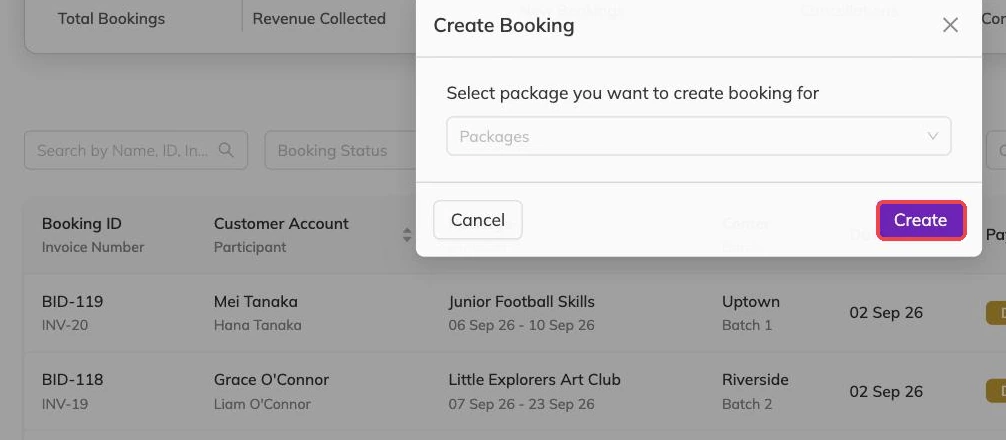
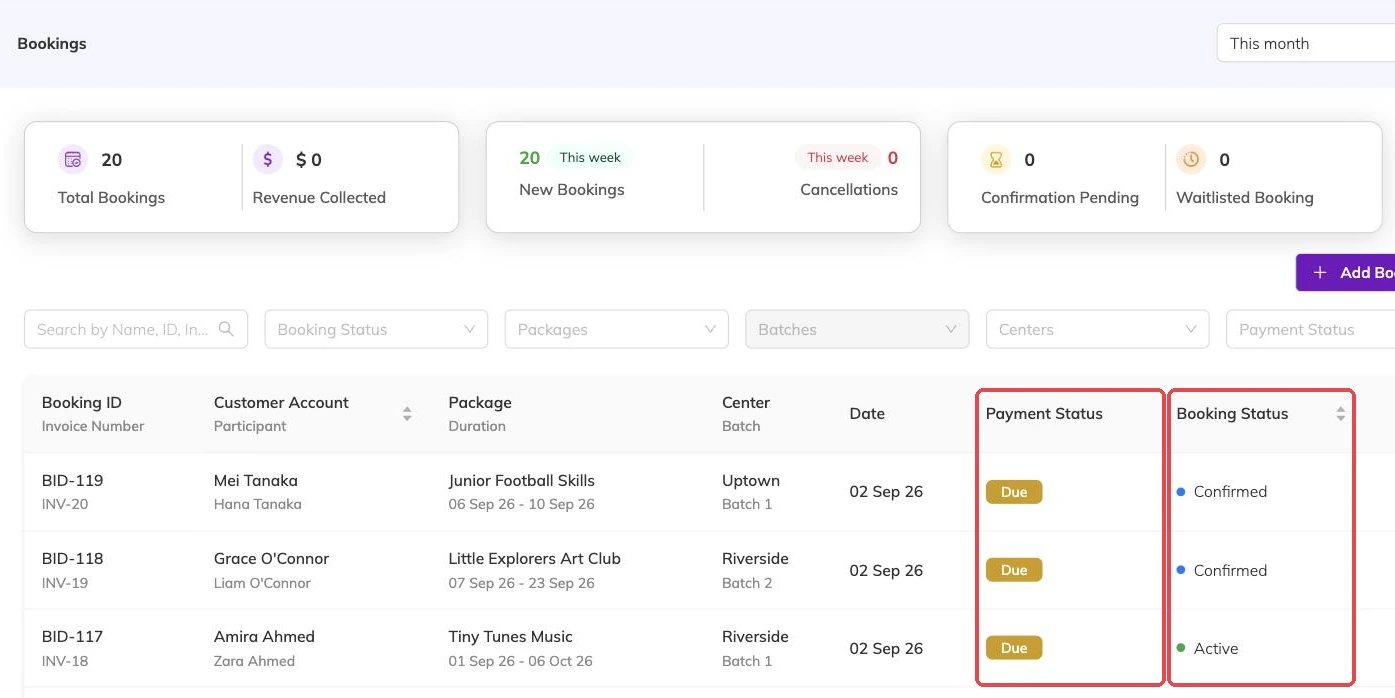
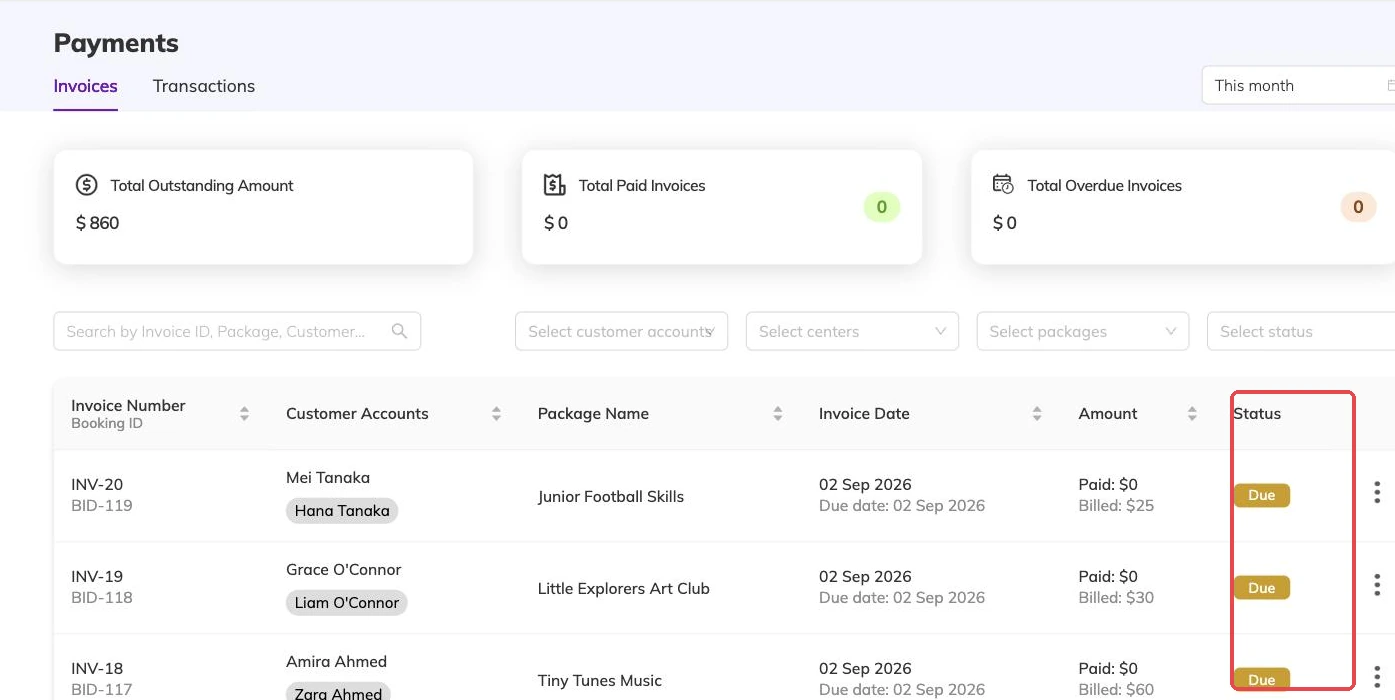
Some programmes make families pay before the booking is made. That rule is aimed at families booking themselves online and it does not stand in your way. A booking you take is created there and then, with an invoice raised against the family to settle however you normally take money.
Invoices and payments covers recording what they hand over at the desk.
Desk bookings skip the approval queue
Where a programme is set to need approval, that applies to families booking for themselves; those arrive waiting for someone to say yes. A booking you make is confirmed the moment it saves and there is nothing further to approve.
Confirming and approving bookings covers the queue for the ones that do wait, and what it costs to leave them sitting.
If a session is full
Capacity belongs to the batch and is counted per session, so the booking is refused if any one of its dates is full — not only the first. Find out which date. Often the fix is dropping that one date or moving the child to another batch, rather than losing the booking altogether.
Where the programme has a waitlist, the booking is taken as waitlisted instead and you confirm it when a place opens. Where it does not, nothing is saved and the parent is still standing in front of you. Waitlists covers how places move.
Why a booking won't save
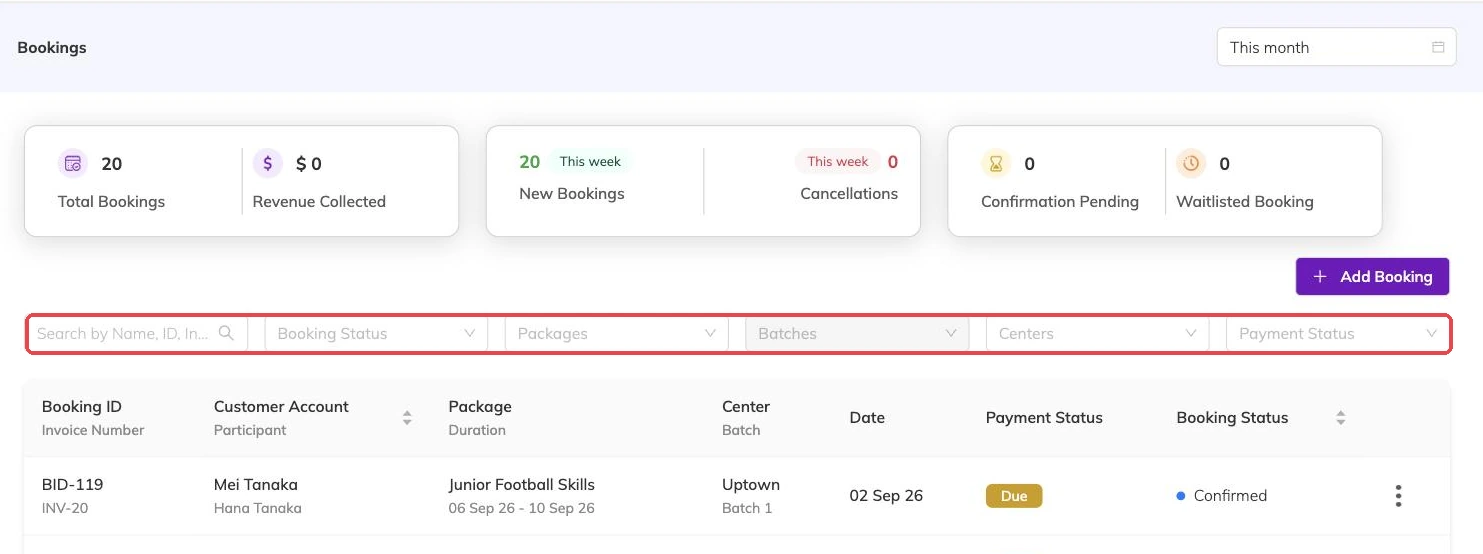
- The family's record is inactive, or the phone number or email address on it has been blocked
- That child already has a booking on the batch covering one of the same dates
- No dates have been selected
- The price on screen no longer matches what Bookingo works out — reload and price it again
- One of the dates is full and the programme has no waitlist
More on bookings
Booking confirmations and PDFs
What the family receives when they book, how to get hold of it again, and why it is not proof of what was agreed on the day.
Cancellations and refunds
What happens to the schedule, the place and the invoice when a booking is cancelled, and what a family sees.
Confirming and approving bookings
Turn on approval for a programme, work the queue of bookings waiting on you, and know why that queue is not the same as a waitlist. Why a queue left alone fills your batches without filling your bank account.