Your logo, colours and booking page
Set what a family sees when they open your booking link, and what carries through to the emails Bookingo sends afterwards.
3 min read
What loads when someone opens your link
Most families meet your centre through a link before they meet anyone at the door. It gets forwarded into a class WhatsApp group, opened on a phone at nine at night, and either looks like the place they were told about or does not.
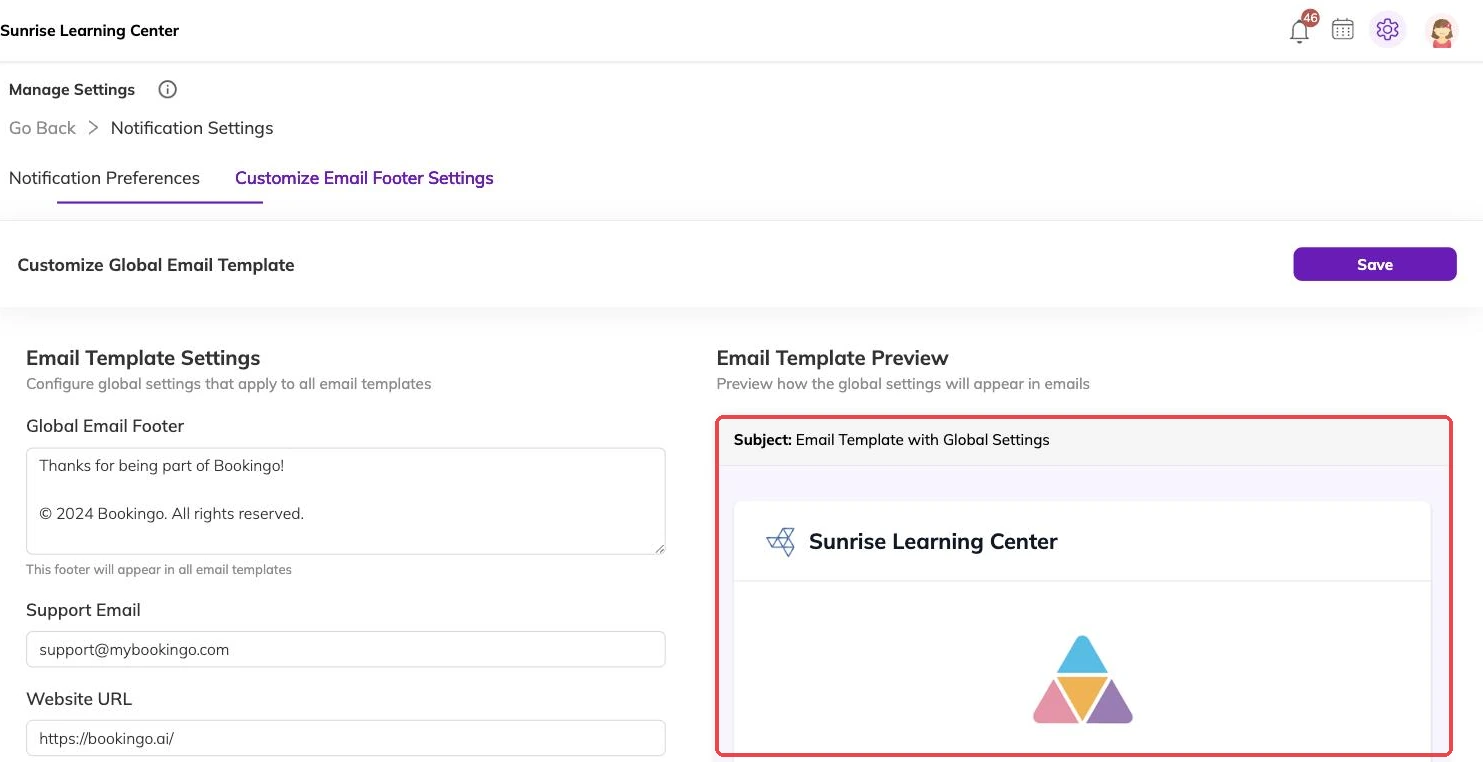
What loads is your name, your logo, one accent colour, your prices in your currency, and dates written in your timezone and date format. The same details follow the booking: your logo goes on the emails and notifications Bookingo sends, so setting it once covers both.
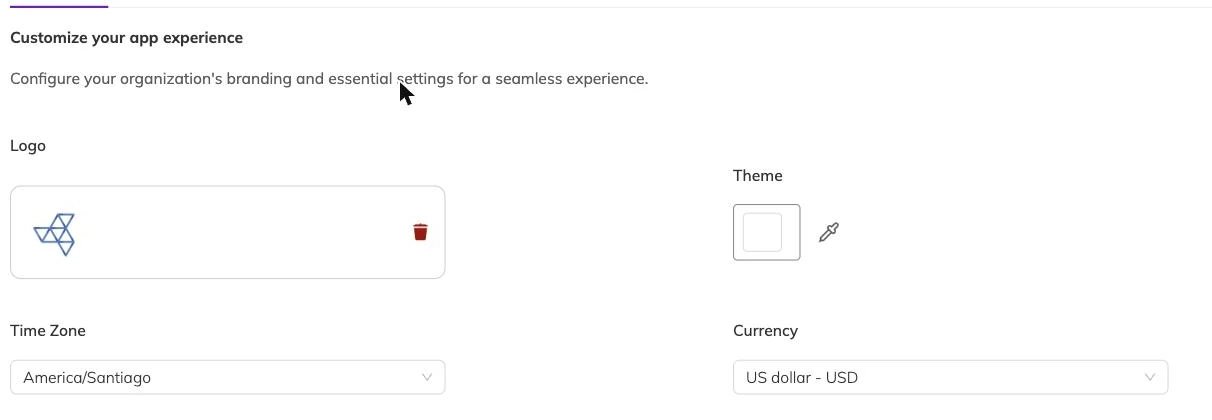
Your logo
Your logo sits at the top of what families see, and shrinks a long way in an email and on a phone. A mark that still reads at a small size does better than a full lock-up with a strapline in it. If you have both versions, use the simpler one here.
With nothing uploaded, families see your centre name on its own. That works, though it does less to connect the page with the building they visited.
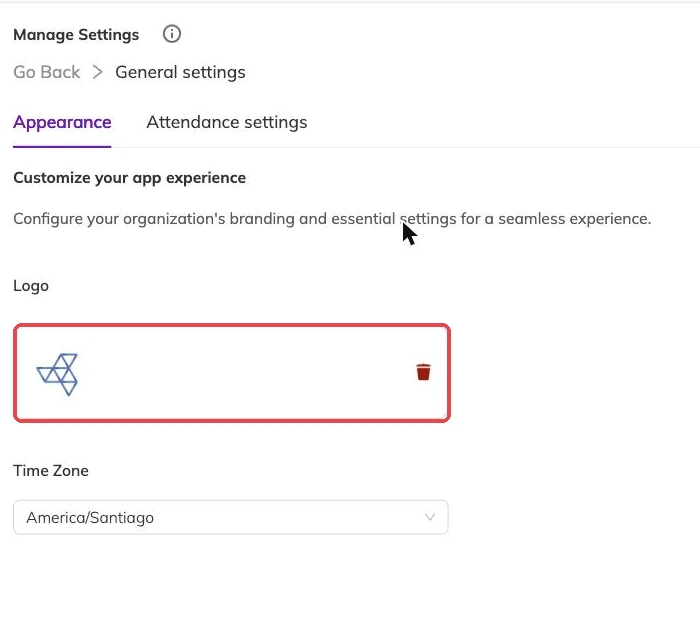
One colour, chosen once
Bookingo uses a single theme colour, given as a six-digit hex value from your brand palette. It is not a full colour scheme. It is one accent, applied to the parts of the page a family is meant to act on.
Since it is doing the work of drawing the eye, pick something with weight rather than the palest tint in your brand guide. Where your brand colour is very light, the darker shade from the same family usually holds up better on a screen.
The link you share
Families can browse your programmes and see prices before they have an account, so the link is safe to put in a newsletter, a class group or on your own website. There is a shortened version for anything you have to print or read aloud.
Only active programmes appear on it. Anything still in draft stays invisible to families, so next term can be half-built behind a link you have already shared. Taking bookings covers what happens once someone follows it.
What shows next to each programme
A few settings decide how much a family sees before they commit — whether your page reads as a full timetable or a short menu.
- Whether the full session schedule shows on the programme page, or only the summary.
- Whether families can save programmes to a wishlist for later.
- Whether the activities attached to a programme are shown. Activities and how they attach to programmes covers what those are.
Look at it the way a family will
Once you have saved, open your own booking link in a private browser window on a phone. That is the view most families get, and it catches what a desktop preview hides: a logo gone grey against a coloured background, an accent colour you cannot read.
What you save shows to the next person who opens the link, so do this on the same day you change anything. The details families are asked for when they set up an account come from your own fields, and Custom fields on families, children and staff covers those.
More on setup
Adding centres and locations
Set up each site you run from, so every batch, register and report knows where the session happens — even if you only ever use one hall.
Currency, timezone and tax
Fix these three before your first invoice goes out, because sessions and invoices keep the times and figures they were created with.
Custom fields on families, children and staff
Put each question on the record it belongs to — allergies on the child, emergency contacts on the family — so you get one answer per person who needs one.