Currency, timezone and tax
Fix these three before your first invoice goes out, because sessions and invoices keep the times and figures they were created with.
4 min read
The settings you only notice when they are wrong
A reminder landing at three in the morning is how a lot of centres discover their timezone is wrong. By then it has gone to everyone booked for Saturday.
Currency, timezone and tax are all quick to set and quick to change. The slow part is the paperwork produced while one of them was wrong. Sessions keep the times they were created with and invoices keep their figures, so changing a setting today does not go back and rewrite either.
Currency
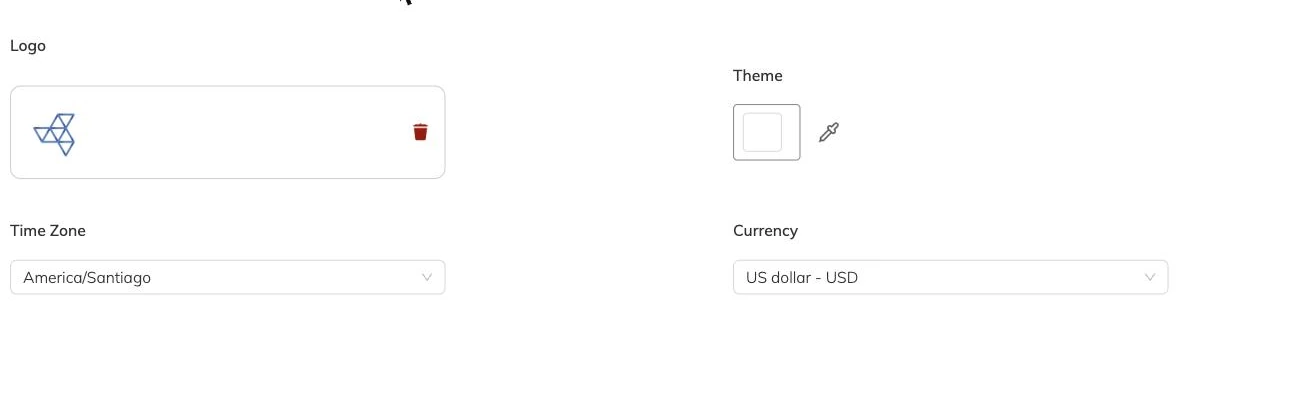
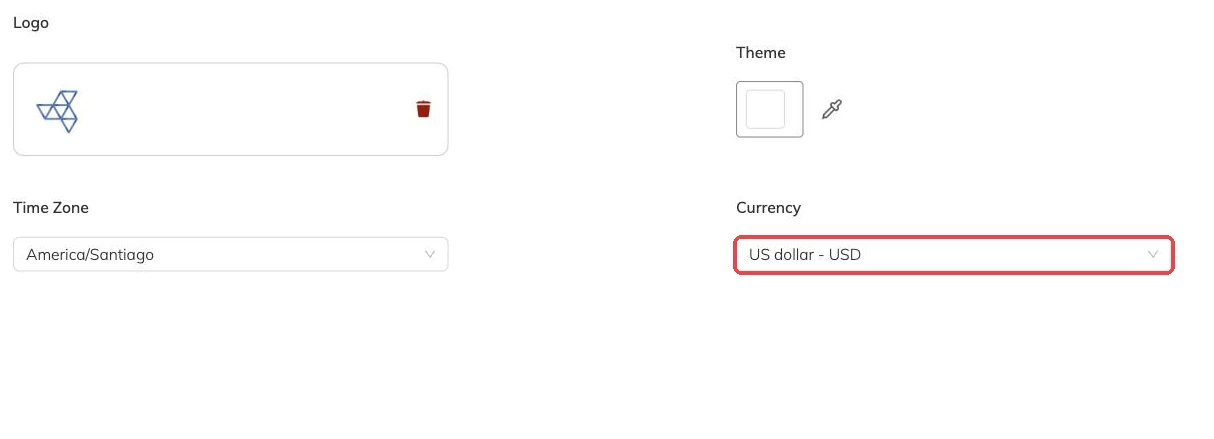
Your account runs on one currency, usually set from the country you registered in. It is often already right, but look rather than assume — particularly if you signed up in one country and operate in another.
The same currency shows on programme prices, on invoices and receipts, and in what your payment provider takes. If it does not match the account the money lands in, sort that out before any money moves. Support at support@mybookingo.com can help if it needs changing after the fact.
Timezone
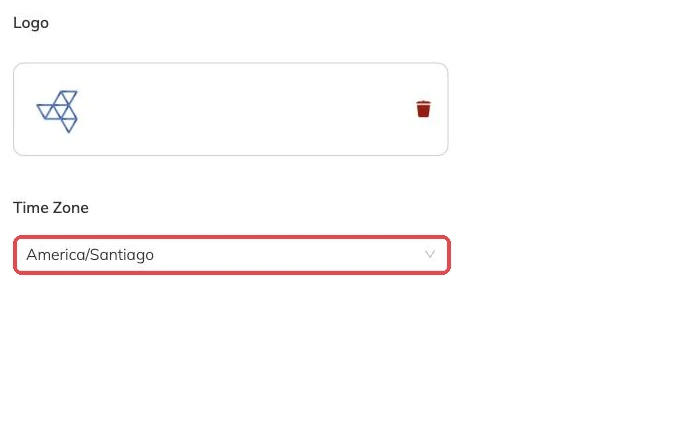
Everything with a time on it reads from your timezone: the start and end times on a batch, the reminders that go out before a session, and the dates your reports group by.
A wrong timezone does not announce itself. It surfaces as a session sitting on the wrong day in a family's confirmation. One timezone covers the account, so if your sites sit in different ones, talk to support before you build batches rather than after.
Setting up a tax
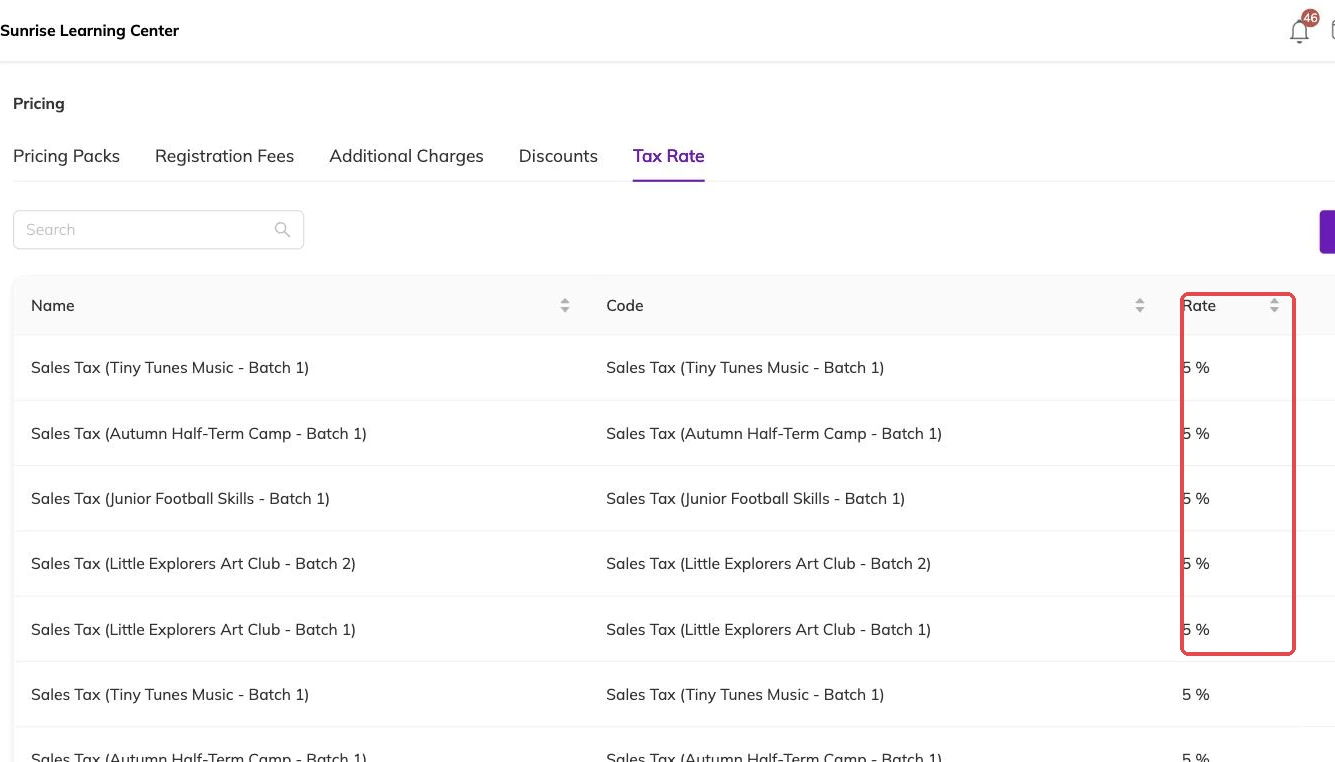
A tax here has three parts: a name, which families read on their invoice; a code, for your own accounting; and a percentage rate.
Tax attaches to a programme in the same place its pricing does. Once a programme carries one, invoices raised for bookings of that programme show the tax on its own line. Set your taxes up before you build programmes and you can attach them as you go, instead of working back through each one afterwards.
- Check the currency and timezone on your account.
- Create each tax you charge, naming it as families should read it.
- Attach the relevant taxes to each programme as you set its pricing.
- Take one test booking and read the invoice end to end before you open bookings to families.
- Cancel the test booking — the place goes back immediately and the unpaid invoice is cancelled with it.
Changing a rate later
When a rate changes, whether statutory or a mistake you have spotted, the new rate applies to invoices raised from that point on. Anything already issued keeps the name and rate it was created with.
That is usually what you want, because your records stay true to what you actually charged. It also means a rate change is a clean cut-over rather than a correction. Invoices raised at the old rate have to be dealt with one at a time, and Invoices and payments covers what you can do with one that has already gone out.
Removing a tax you no longer charge
A tax cannot be removed while a programme still carries it, or while it appears on a booking. Detach it from the programmes that use it. If bookings reference it, leave it where it is.
Old invoices show the tax they were raised with either way, which is what your accounts need. An unattached tax you no longer apply costs you nothing sitting there.
More on setup
Your logo, colours and booking page
Set what a family sees when they open your booking link, and what carries through to the emails Bookingo sends afterwards.
Adding centres and locations
Set up each site you run from, so every batch, register and report knows where the session happens — even if you only ever use one hall.
Custom fields on families, children and staff
Put each question on the record it belongs to — allergies on the child, emergency contacts on the family — so you get one answer per person who needs one.