Connecting Illumine to Bookingo
For centres already running Illumine: connect the two once and your students, parents and their details flow across automatically.
6 min read
What connecting gives you
If you already use Illumine, your families are in it — names, birthdays, allergies, emergency contacts, who's allowed to collect them. Connecting Bookingo means you don't type any of it again, and parents can book activities from the Illumine app they already have.
Connecting
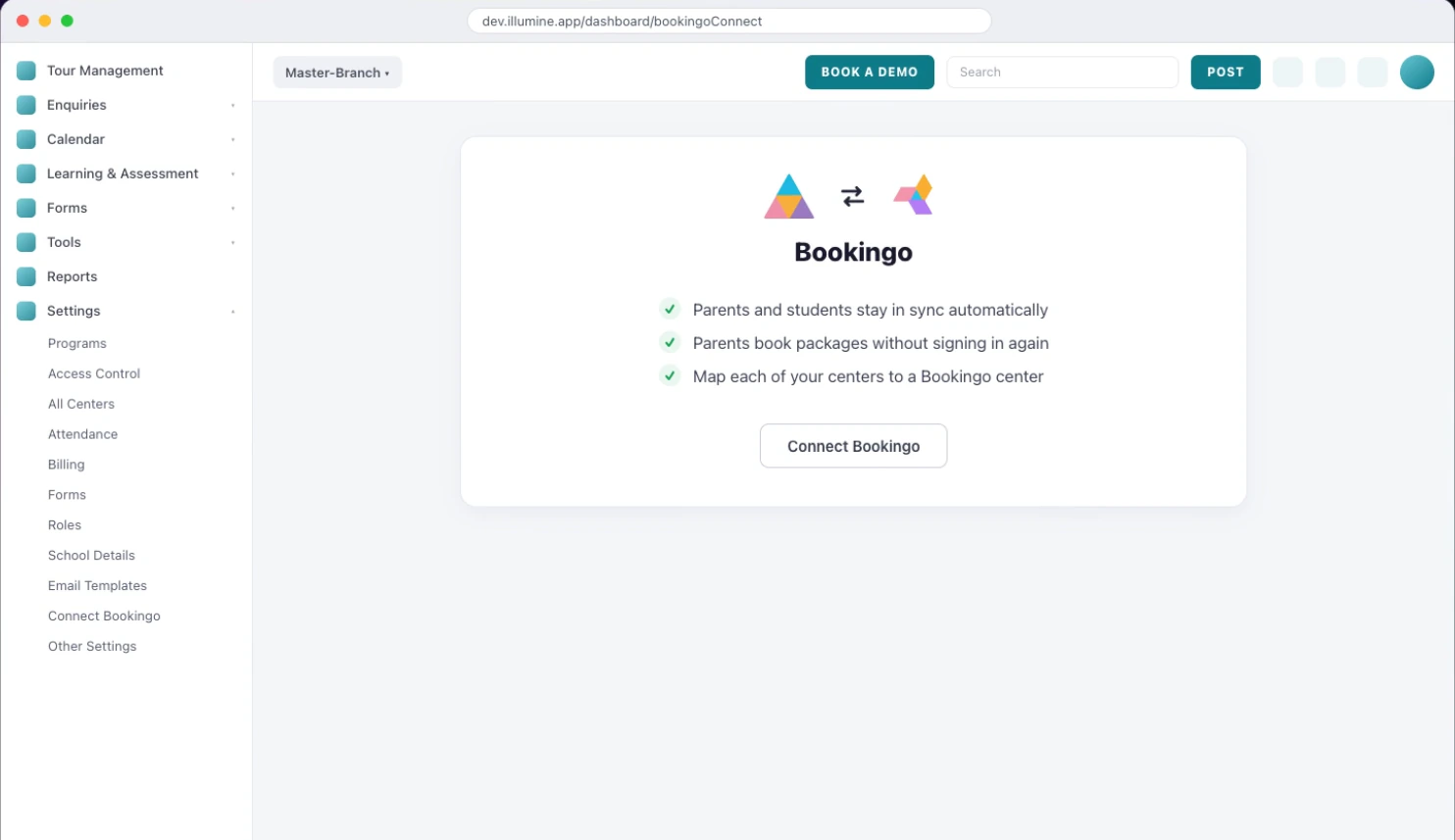
You start in Illumine, not in Bookingo. Open Settings, and Connect Bookings sits near the bottom of the list beside Email Templates and School Details.
- In Illumine, go to Settings and choose Connect Bookings.
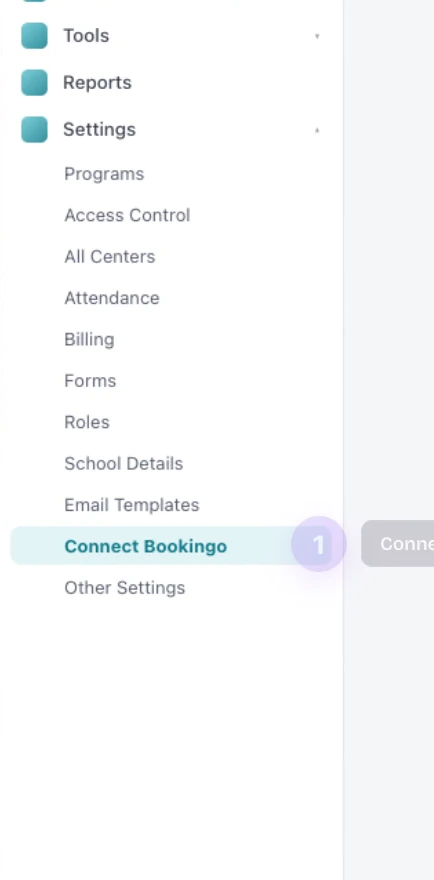
- Read what the connection gives you, then press Connect Bookings.
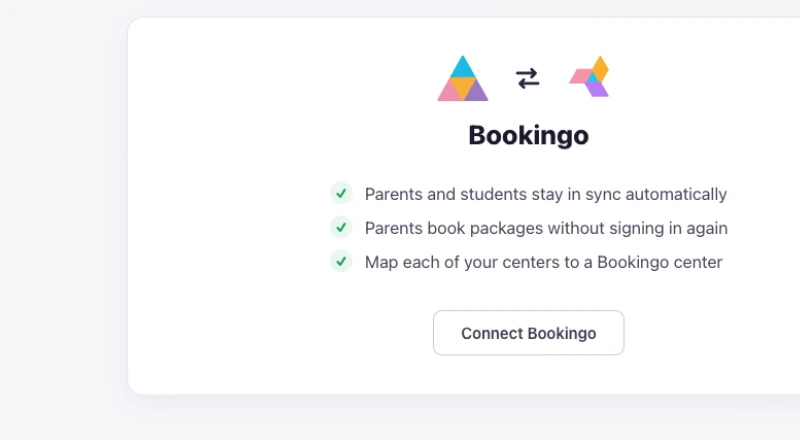
- Pick which Bookingo company belongs to this school, and press Connect.
- If you run several locations, map each Illumine centre to its matching Bookingo centre.
What syncs, and what doesn't
The sync brings across students who are active and signed up — not everyone who has ever been on your roll. Alongside each child come their photo, date of birth, allergies, emergency contacts and authorised pickups, plus the parents on their account.
Records that came from Illumine are tagged as such and their Illumine-owned fields are read-only in Bookingo. That's deliberate: Illumine stays the single source of truth for who a child is, so the two systems can never disagree about an allergy. To change something, change it in Illumine and it updates here.
What parents see
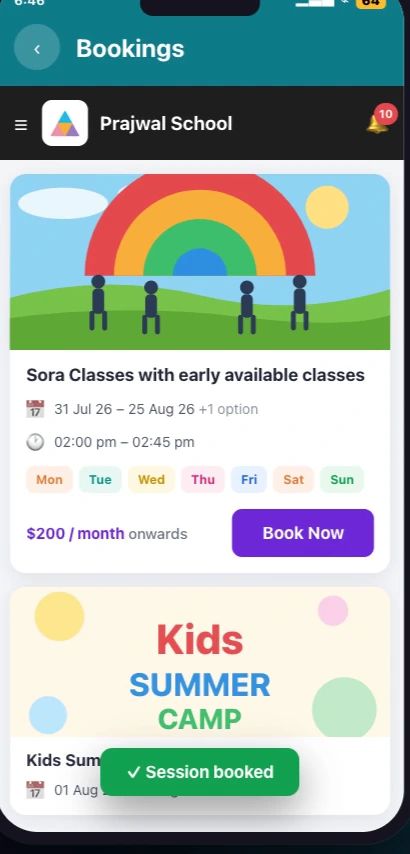
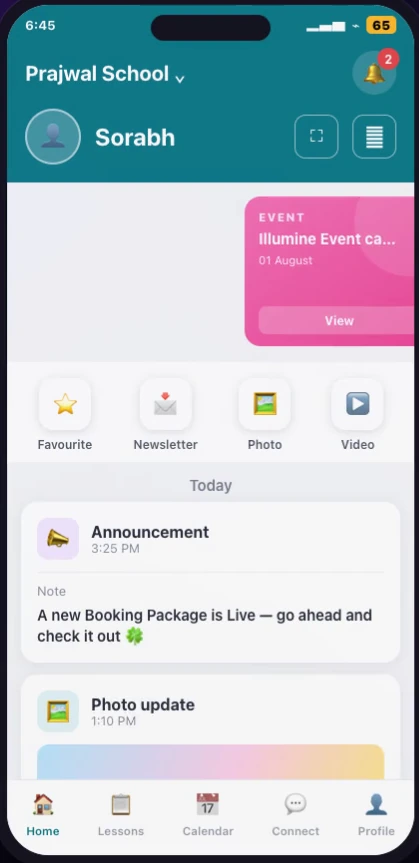
On their Illumine home screen, parents see an activity suggested for their child — matched to that child's age and centre, and only shown if they haven't already booked it or joined its waitlist. Tapping through takes them into Bookingo already signed in, with the right child selected. No second account, no second password.
Booking without a second login
This is the part families notice. A parent already signed in to Illumine taps through to a programme and books it there — no second account, no password to remember, no separate app to install.
Unlinking
You can unlink an individual family, or disconnect the two products entirely. Disconnecting stops the sync; your Bookingo data stays where it is. It isn't a one-way door.
More on integrations
Rewriting the emails Bookingo sends
Replace the subject line and wording of any Bookingo email, and set the footer and contact address that appear on all of them.
Choosing which notifications go out
Decide which events email your families, which reach your team, and switch off the ones you would rather not send in your name.