Importing your programmes from a spreadsheet
Add every programme at once from a spreadsheet instead of creating them one by one. Nothing goes live until you publish it.
6 min read
When to use this
Setting up a term's worth of programmes one at a time is slow. If you already have your schedule in a spreadsheet — or you're moving from another system — you can bring the whole lot across in one go.
Everything you import arrives as a draft. Nothing is visible to families and nothing is charged until you open each one and publish it, so this is safe to try.
Getting to the import page
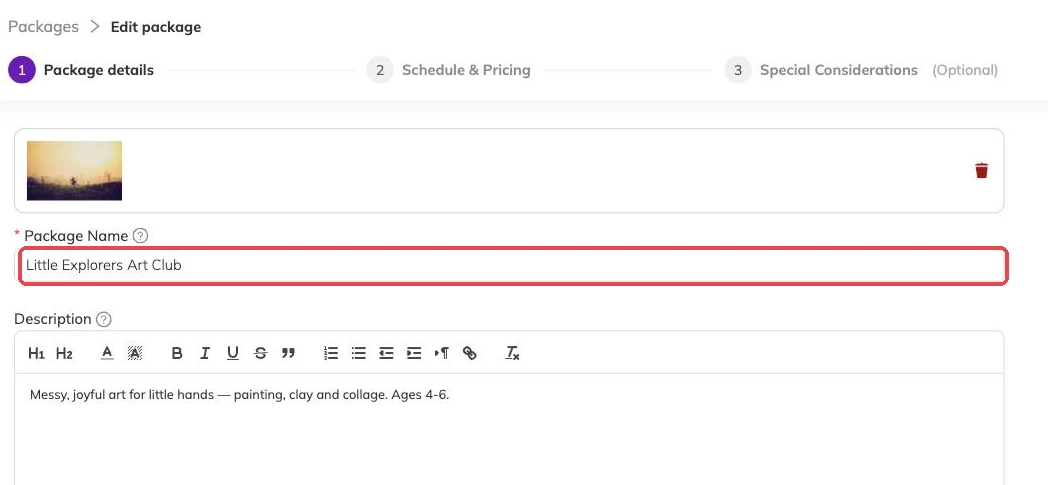
Import doesn't have a menu item yet, so it isn't somewhere you'll stumble across. Sign in to Bookingo and go straight to this address:
https://admin.mybookingo.com/dashboard/packageImport
Worth bookmarking it while you're setting up — you'll likely use it a few times before your first term is right.
How it works
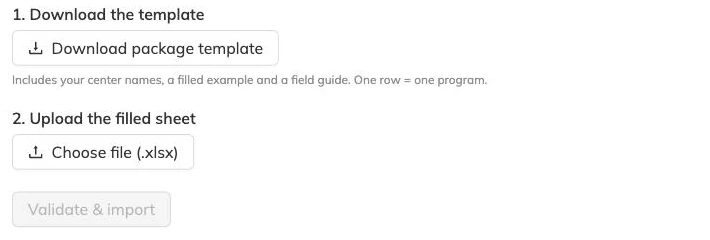
- On that page, download the template. It already contains your centre names, a worked example and a field guide.
- Fill in the Packages tab — one row per programme. Edit or delete the example rows.
- Upload the filled file. The whole sheet is checked before anything is created.
- Open Packages, review the drafts, and publish the ones you're happy with.
One row is one programme
Each row is a complete programme: its schedule, its centre, its capacity and its price. Columns marked with an asterisk are required; leave the rest blank if you don't need them.
To run the same programme on two schedules — a morning group and an afternoon group, or the same club at two centres — put them on two rows with exactly the same name. Rows sharing a name become one programme with two batches.
Formats to follow
- Dates — 01 Sep 2026
- Times — 24-hour, so 16:00 rather than 4pm
- Days — Mon Tue Wed Thu Fri Sat Sun, separated by a vertical bar: Mon | Wed | Fri
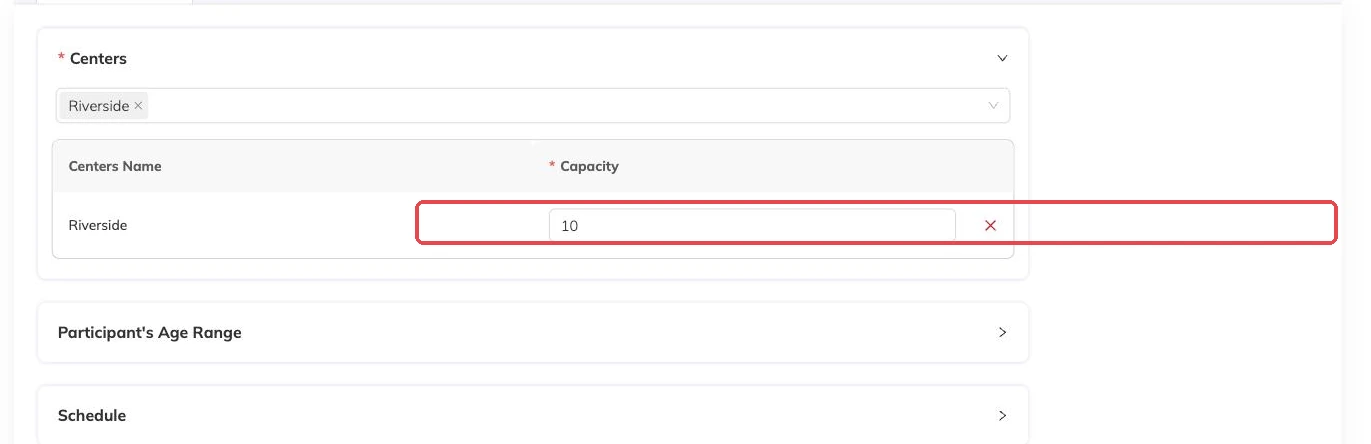
- Centres and capacity — CentreName:Seats, separated by a vertical bar: Uptown:12 | Riverside:10
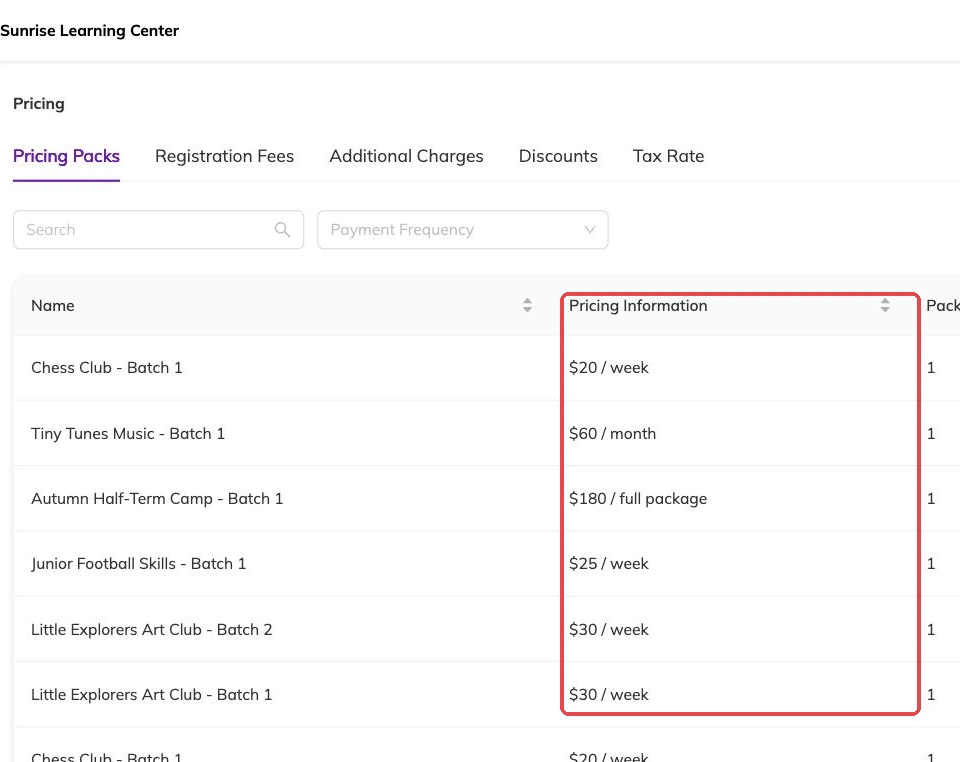
- Price — just the number, no currency symbol
- Frequency — Weekly, Monthly, Daily or Full package
More than one time slot in a day
In the Timings column you can offer several slots and let families choose. Write each as start - end and separate them with a vertical bar, for example 09:00 - 10:00 | 16:00 - 17:00.
Discounts, taxes and fees
You don't need to set these up first. Type them straight into the relevant column as Name: Value, separating several with a vertical bar. A percent sign means a percentage; a plain number means a flat amount.
After importing
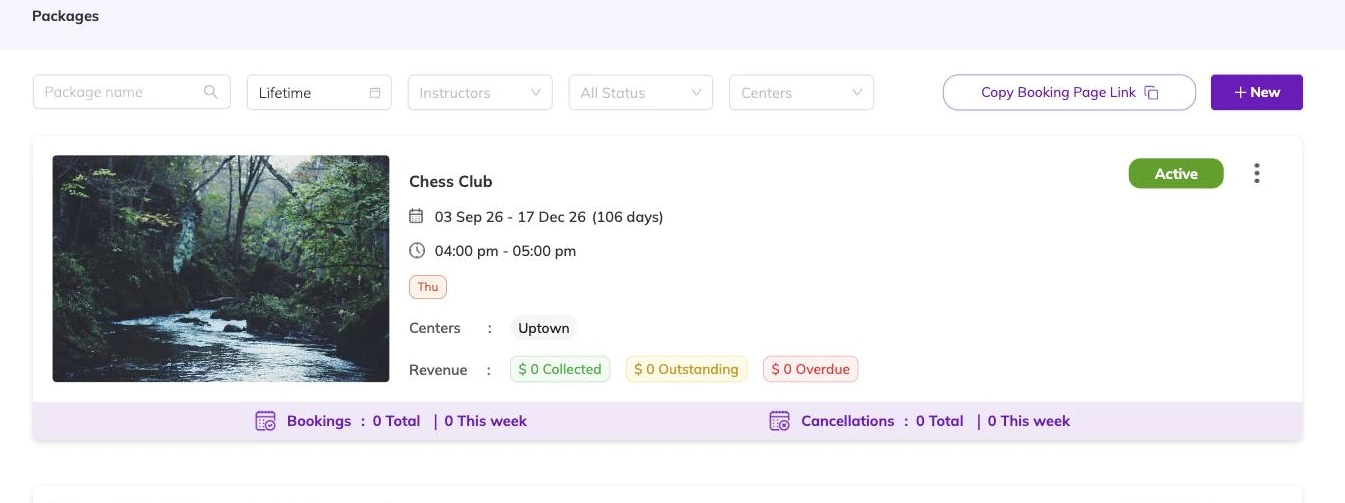
Open Packages and you'll find your programmes marked as drafts. Check the schedule, capacity and price on each, then publish. You can re-import as often as you like while you're getting it right.
More on programmes
Activities and how they attach to programmes
Group what you run — ballet, swimming, guitar — so a parent can tell what a programme is and a report can total a subject rather than eleven programme names.
The page families book from
What families see on your booking page, what decides how a programme appears in the list, and the five reasons one is missing.
Checking what is actually running
How to see every session your batches produce across programmes, instructors and centres, and the checks worth doing there before a term opens.