Choosing which notifications go out
Decide which events email your families, which reach your team, and switch off the ones you would rather not send in your name.
3 min read
Before you touch anything, Bookingo is already sending
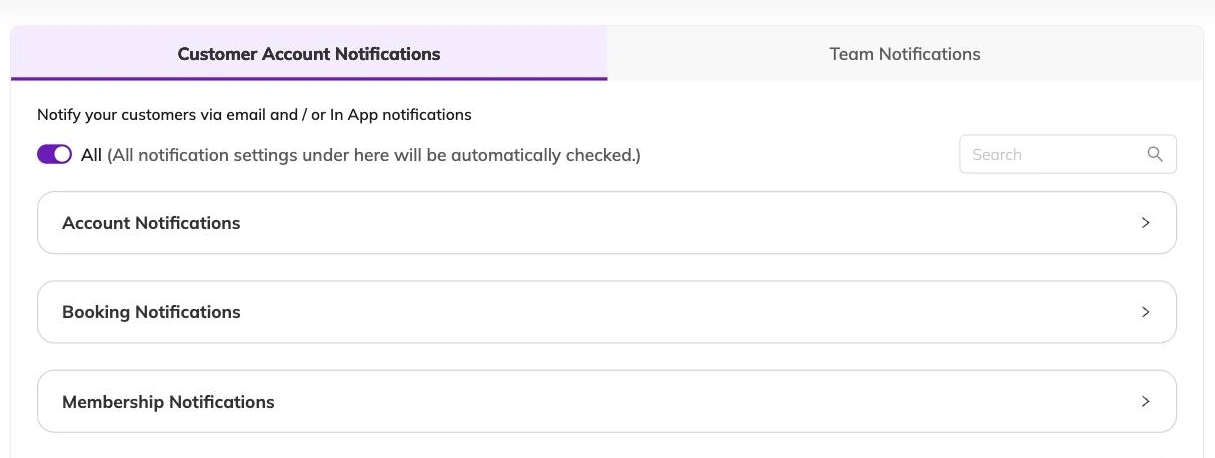
A parent forwards you an email and asks what it means. You did not know your centre had sent it. That is the usual first encounter with notification settings, and it happens because Bookingo sends by default: until these settings have been saved once, any event with a message attached sends that message.
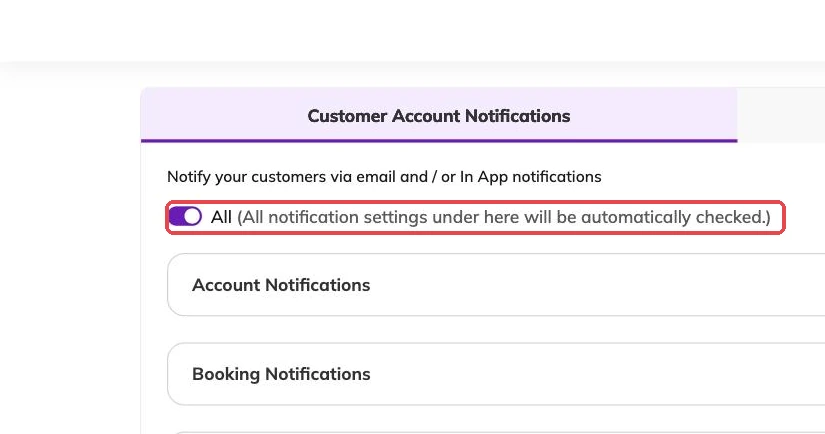
After the first save the rule inverts. Bookingo then sends what you have switched on, and nothing else. So the first pass through the list is a decision about what to switch off — and a partial pass, ticking two things and saving, switches off everything you did not tick, booking confirmations included.
Families and your team are two separate lists
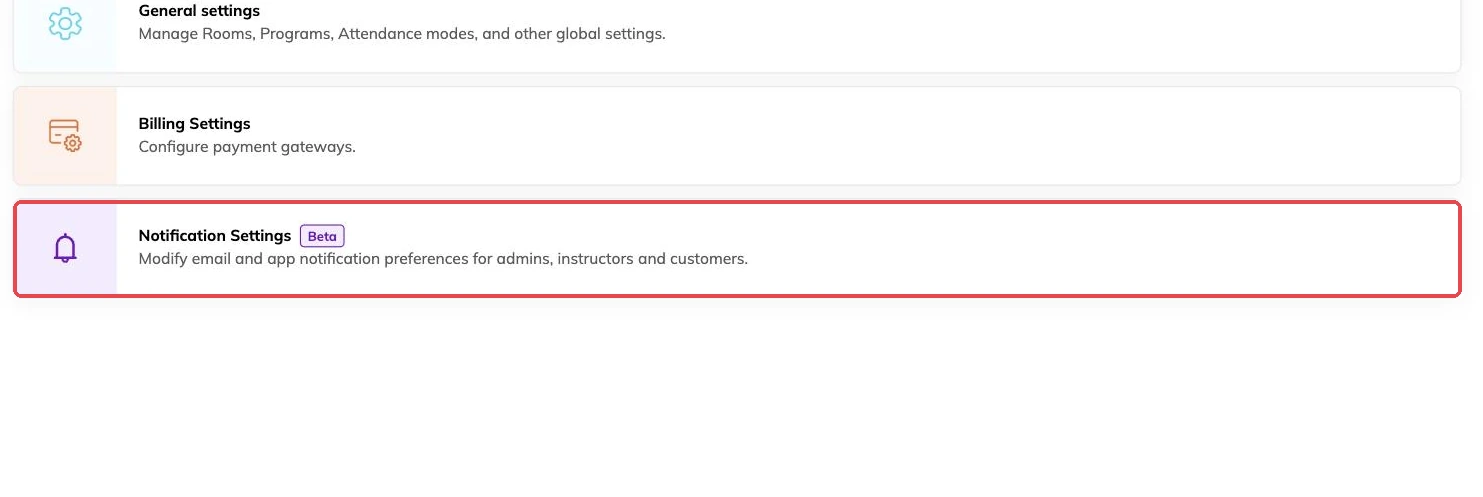
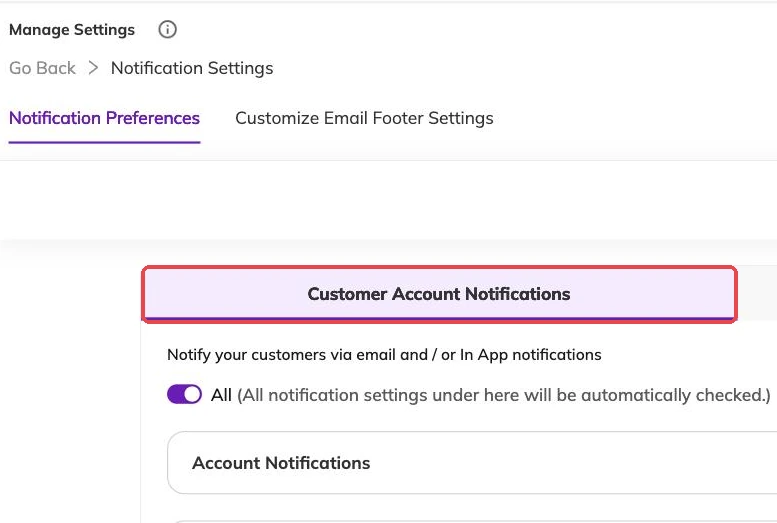
Settings are held separately for the families who book with you and for your own team, and the two do not mirror each other. Switch off the booking confirmation families receive and your team's version of the same event carries on. The reverse is also true.
Within each list, email and in-app alerts are set separately, so a message can stay visible inside Bookingo without landing in an inbox. Where you have made no choice about the in-app alert, it follows whatever you set for the email.
What families can be told about
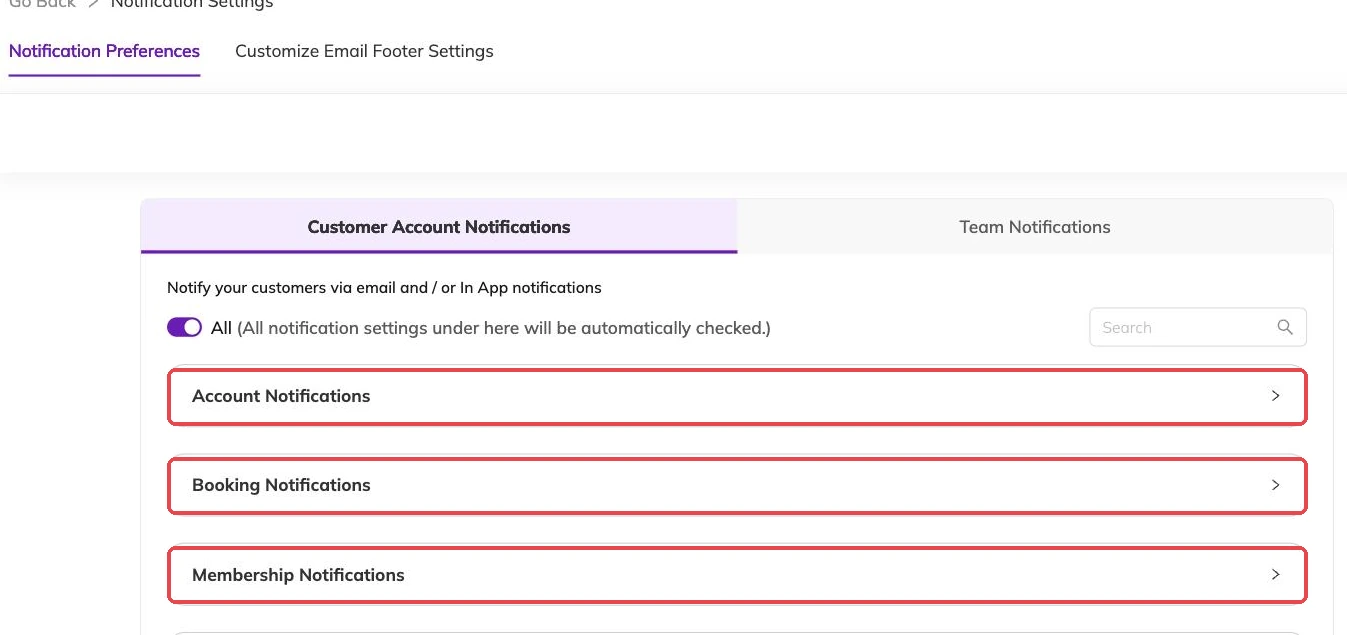
The settings are grouped by the part of your day they belong to. The list for families covers:
- Family accounts — an account created, blocked, linked to another account, or unlinked.
- Bookings — requested, confirmed, cancelled, rescheduled, waitlisted, and the booking finishing.
- Memberships, if you sell them — requested, activated, cancelled, dates changed, ended.
- Sessions — the reminder before a session starts.
- Invoices — an invoice generated, and a payment received. That is the whole group.
- Attendance — check-in, check-out, and being marked present or absent.
- The activity feed — a post their child is tagged in, a general post with nobody tagged, and a post that has been edited.
- Reviews — the acknowledgement after a family leaves feedback.
How far ahead the session reminder goes
The session reminder is the one message where you set the timing as well as whether it sends at all. You choose a number and whether it counts in hours or in days. It starts at one day before the session.
Hours suit a nudge on the morning itself. Days suit programmes where a missed session costs a place: a day's notice gives a parent time to tell you they cannot make it, and cancelling releases that place straight away for someone else, as Cancellations and refunds explains.
The settings screen cannot tell you whether your choice is working. Attendance and late cancellations can. Leave it alone long enough to see them move.
What your team receives
Team notifications answer a different question: who needs to know, and about which location. They reach the staff attached to the centre the booking belongs to, so a coach at one site is not pulled into a cancellation at another. Running multiple locations covers how those restrictions are set.
Two differences are worth knowing. Your team's attendance list covers staff check-ins and absences as well as children's. And the team version of the session reminder carries the list of who is booked into that session, which is a reason to keep it on even where the family version is off.
Admin inboxes fill faster than anyone expects, and attendance is usually the cause: it fires once per child per session, not once a day. Start there before you touch anything families see.
Deciding what to switch off
The test is not whether a message is accurate. It is whether the person reading it would do anything differently for having read it. A confirmation changes what a parent puts in the calendar. A notification that a post was edited changes nothing for anyone.
Two patterns cause complaints. The first is the doubled message, where the confirmation and the invoice land within a minute of each other; Invoices and payments describes what the invoice message already carries. The second is the alert sent to a shared team address that everyone assumes someone else is reading.
Keep the waitlist message on. A family who is not told they have been waitlisted will assume they have a place, and will turn up. Waitlists covers what happens next.
One thing to be clear about: a message that was switched off does not arrive late. Nothing is held back and released when you switch it on again. It does not arrive.
More on integrations
Rewriting the emails Bookingo sends
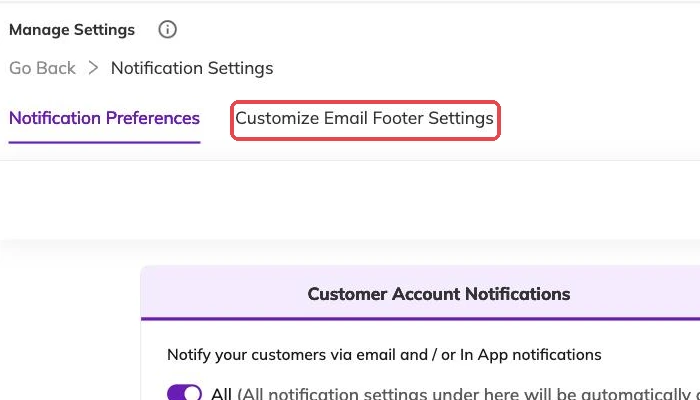
Replace the subject line and wording of any Bookingo email, and set the footer and contact address that appear on all of them.
Connecting Illumine to Bookingo
For centres already running Illumine: connect the two once and your students, parents and their details flow across automatically.