How to book your child into a class
Choose the right schedule, check the dates you are committing to, and get your child booked in.
3 min read
Start from the link your centre sent you
Term starts in a fortnight and you want your child's place before it goes. That link your centre sent opens the classes they are running. Bookingo is the software behind it, so the classes, the dates and anything you owe all sit in the same place.
Your family gets one account with your children on it. The first booking asks for the details your centre needs about you and your child. The next one asks for far less.
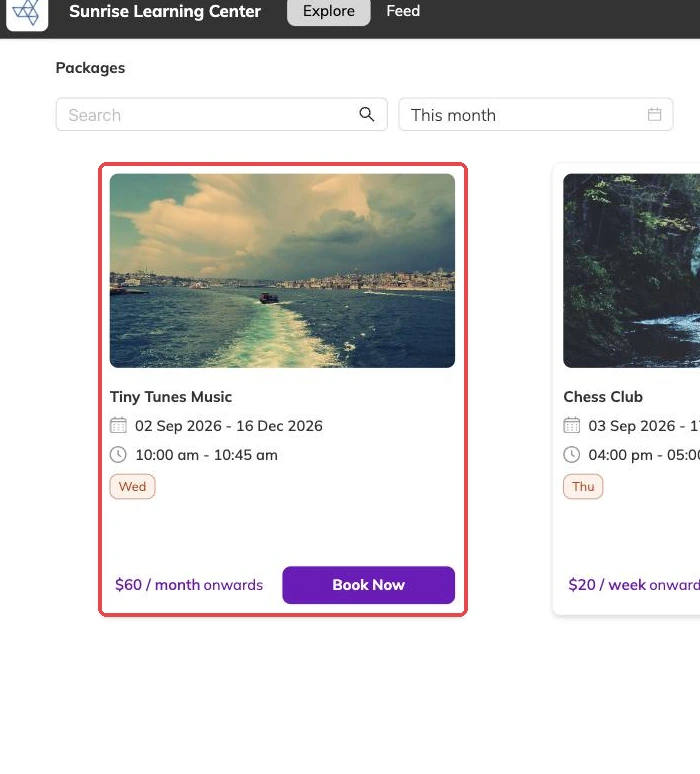
Find the programme, then the right schedule
A programme is what you are signing your child up for: Tuesday ballet, a football week in half term, beginner piano. Each one says what it covers and who it suits.
Inside a programme there is often a choice of schedules. Tuesdays at four at one location, Saturday mornings at another — the same programme, running on different days in different places. Pick the one that fits your week, because that choice decides which dates your child is booked on.
Prices are set per schedule, so the Saturday group can cost a different amount from the Tuesday one. The card shows the lowest price as a figure followed by ‘onwards’, because what you actually pay depends on how much you book.
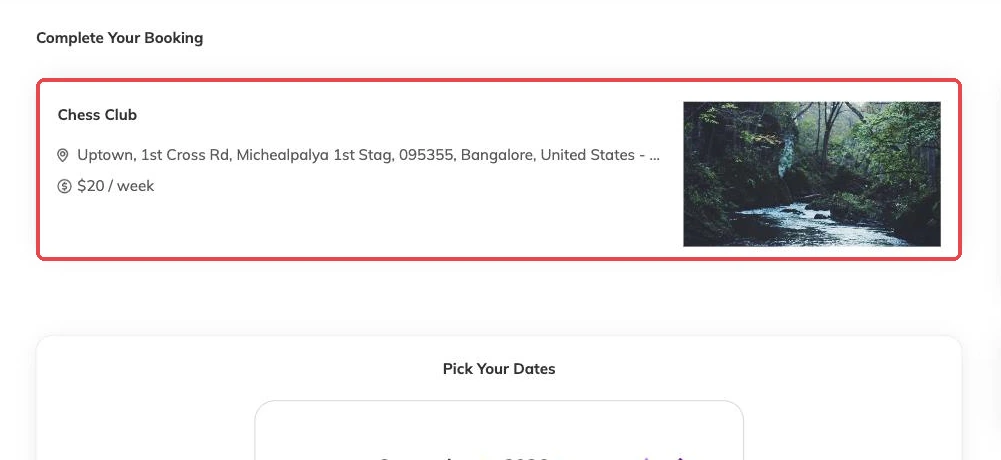
You pick weeks, not individual days
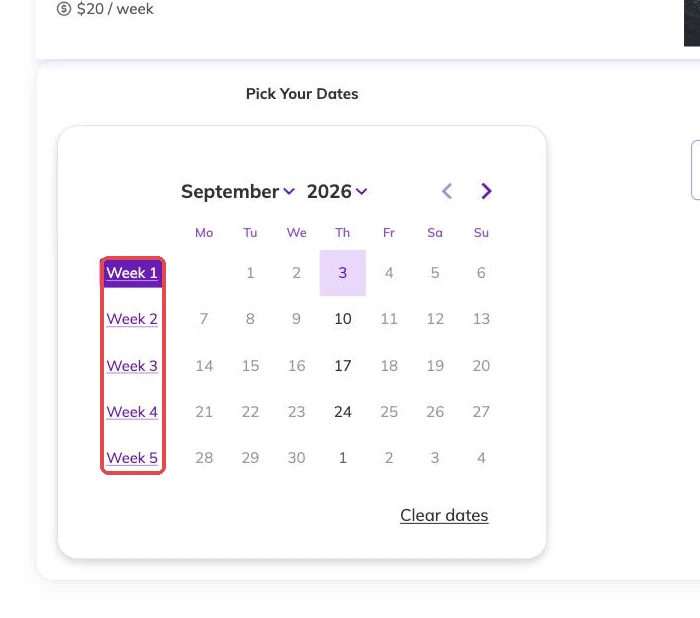
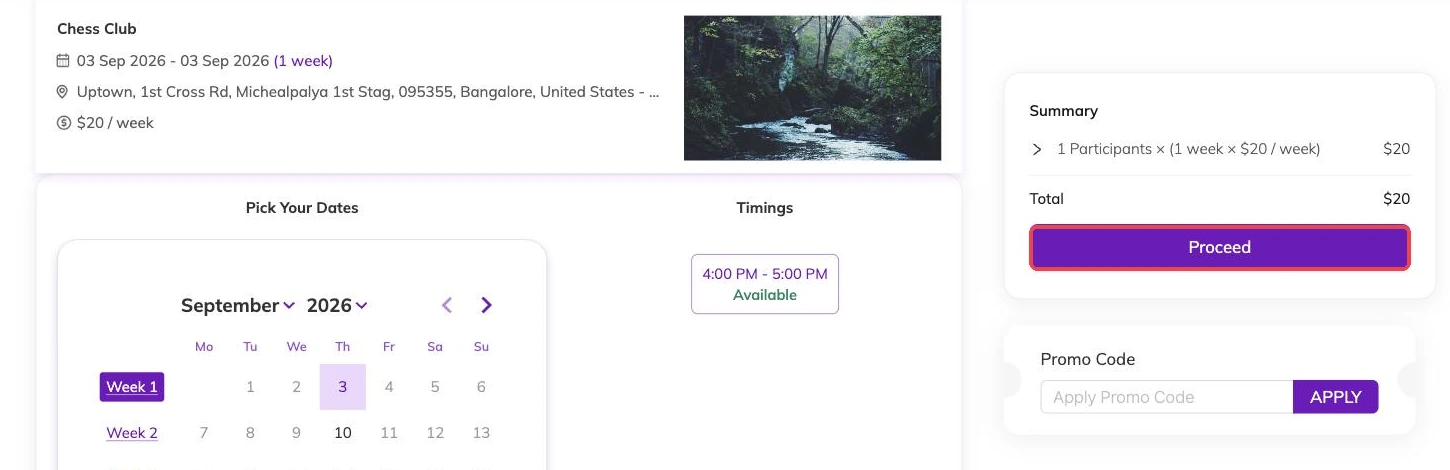
This catches people out, so it is worth saying plainly. The calendar on a booking page shows every date, but the dates themselves are not what you click. Down the left there is a row of week links — Week 1, Week 2, and so on — and those are the buttons.
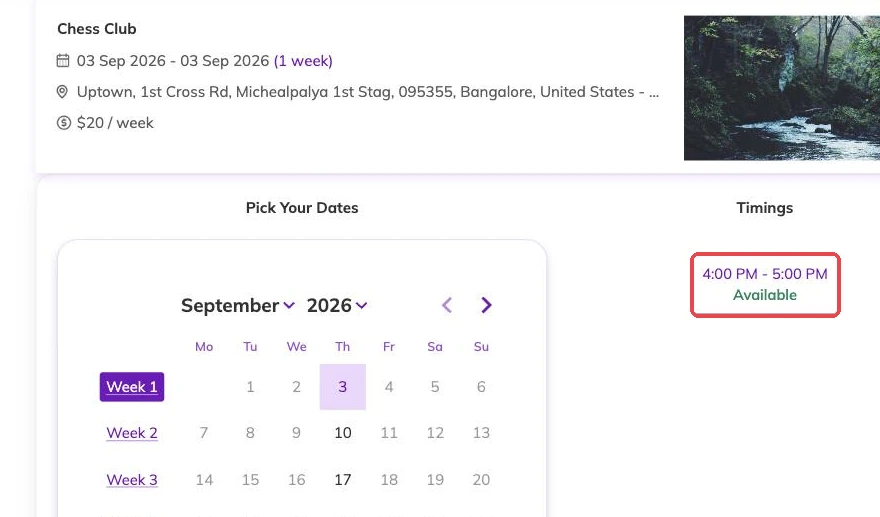
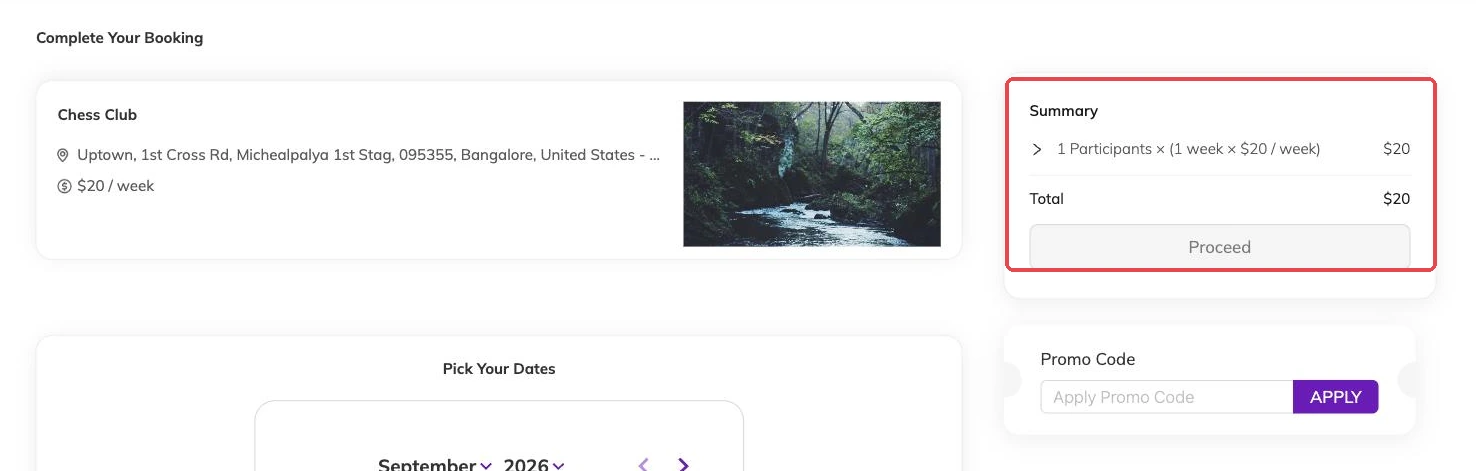
Choose a week and two things appear. The programme summary at the top gains the dates you have just committed to, and a timings panel opens beside the calendar showing the session time and whether it still has room. Until you choose a week the Proceed button stays greyed out, which is the clearest sign that nothing is selected yet.
Check the dates before you confirm
Schedules come in two shapes. One repeats on the same weekday between a start and an end date. The other is a specific list of dates — a half-term camp, four Saturday workshops. Either way, you see the dates before you confirm anything.
Read them against your own calendar first.
- Whether any dates fall in a school holiday or a week you are away
- The day and time, which can differ between schedules in the same programme
- Which location it runs at, if your centre has more than one
- Which of your children you are booking
Choosing which child is going
You pick from the children already on your account. Centres name that list themselves, so you may see Students, Members or Children on screen. It is the same list.
If the child you want is not on it, add them before you book. What staff know on day one — allergies, medical notes, who to ring — comes from that record, not from a conversation at the door.
If the class is full
Places are counted session by session, and your booking takes one on every date it covers. A run of eight Tuesdays takes a place in all eight. That means a single full date in the middle of a run is enough to stop the whole booking.
Some centres keep a waitlist. Where they do, you can put your child's name down and they will contact you if a place comes free. Where they don't, it is still worth asking — places open up when other families cancel, and a cancelled place goes back into the class straight away. Waitlists explains how they work.
After you have booked
You get a confirmation listing the dates. Payment depends on your centre: some take it as you book, others raise an invoice afterwards. Either way, what you owe and what you have paid sits on your family account.
Plans change. A booking can be moved to other dates or cancelled, and your centre decides how much notice they want for either.
On a phone or on a computer
The parent portal works the same on both. Most parents book on a phone, usually standing in a corridor at pick-up, so everything is reachable one-handed — but if you would rather sort out a whole term at a laptop, the same pages are there and nothing is missing from either.
You do not need to install anything. It is the same link either way.
More on for families
Keeping your family's details up to date
What your centre holds about you and your children, and why the phone number and allergy notes matter before the next session.
Changing or cancelling your booking
Move a booking to different dates or cancel it, and see what each one does to your child's place and to your invoice.
What you owe, and how to pay it
When your centre takes payment, where to find your invoices, and who to ask when a charge looks wrong.