Exporting bookings, children and payments
Choose between the three reports, filter before you run one, and know why the column headings will not match the words on your screens.
4 min read
Three reports, three different questions
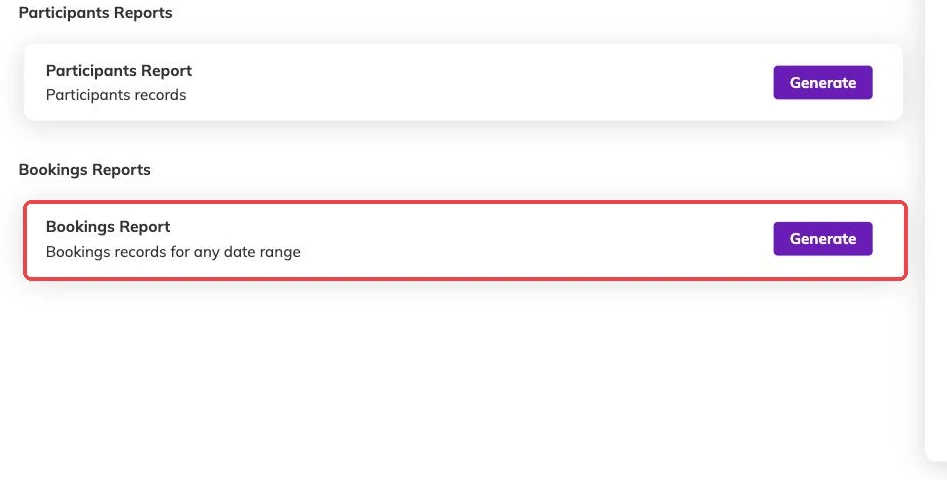
Which one you want depends on the question in front of you. Reconciling against a bank statement is a transactions job. Working out how full a batch is, is a bookings job.
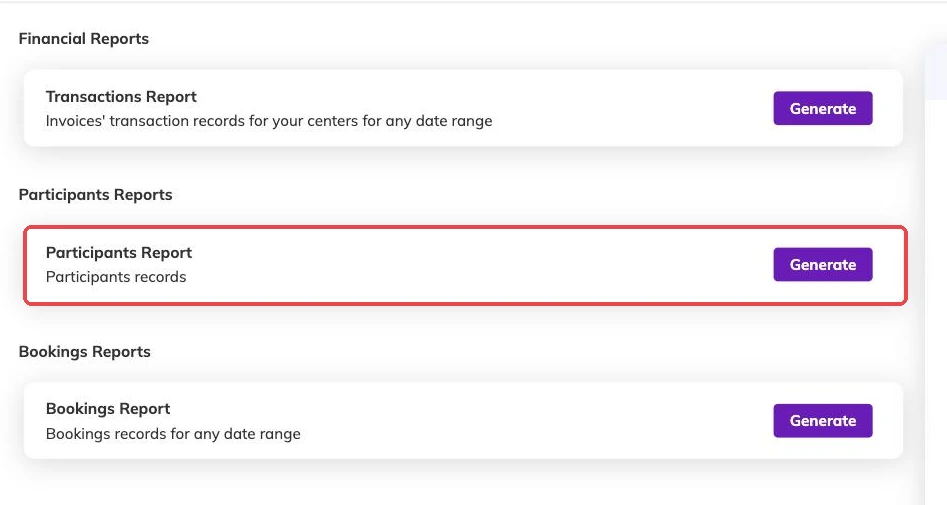
- Bookings — who booked what. Booking reference, family, child, package, batch, centre, the date it was booked, status, amount, payment status, invoice number and the dates booked.
- Participants — who is on your books. The children and the family accounts behind them, each one's status, contact details and when they joined.
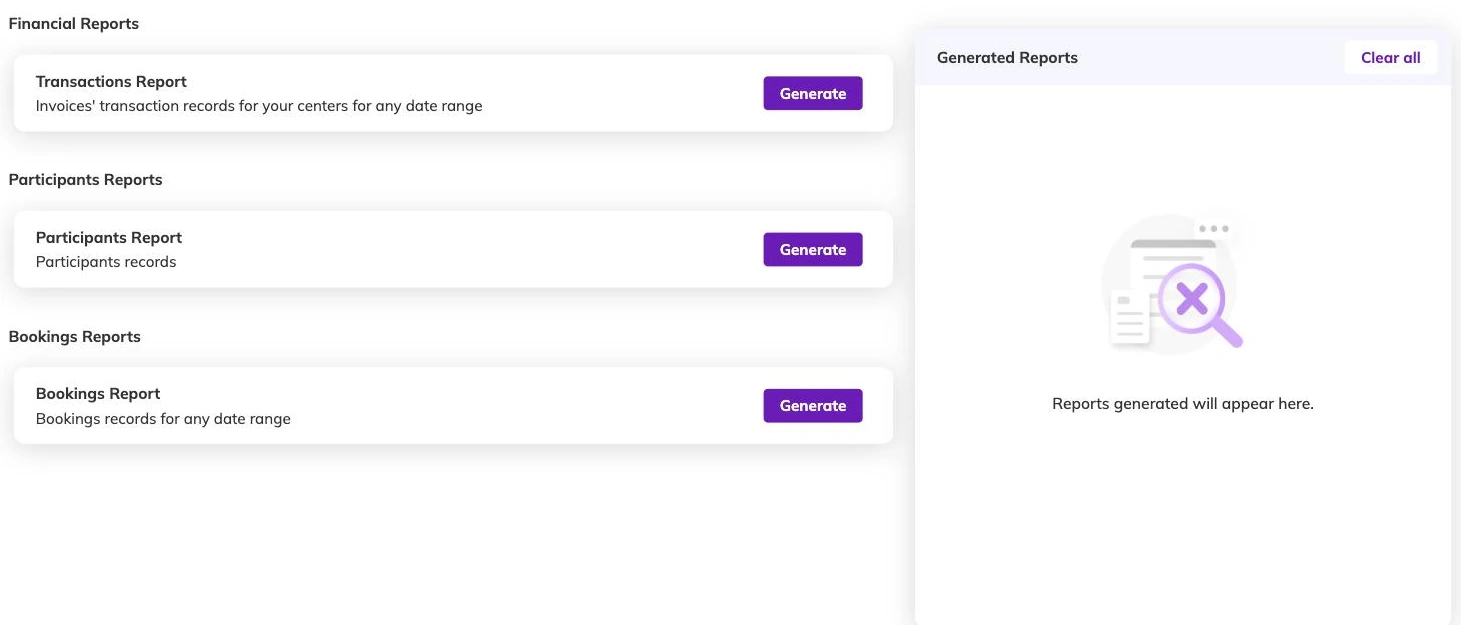
- Transactions — what happened to the money. Invoices with their amount and status, the payment against each one with its date, method and fee, plus discounts and taxes. Discounts, codes and automatic offers explains how those figures are arrived at.
Filter before you run it, not afterwards
Every report needs a date range. Beyond that:
- All three can be limited to particular centres.
- Bookings can also be narrowed by package, by batch and by booking status. Narrowing by status is worth the few extra seconds — cancelled bookings left in the file are the commonest reason a total looks too high.
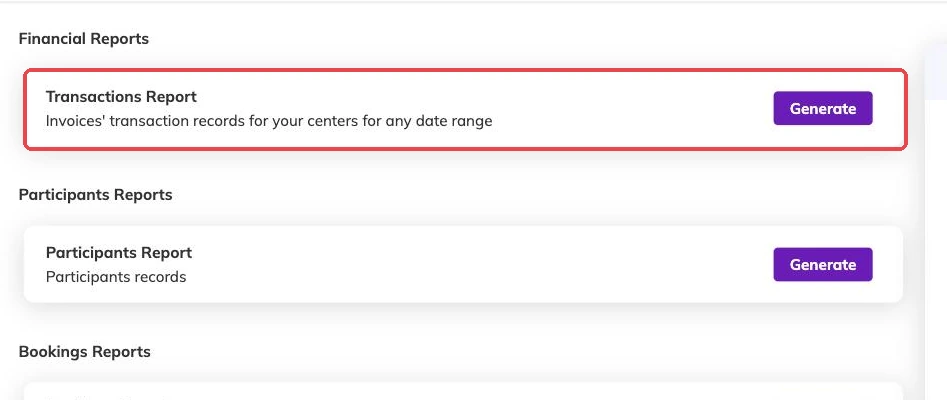
- The participants report can be narrowed by status, so you can pull the active families without the ones who have left.
Reports are built in the background
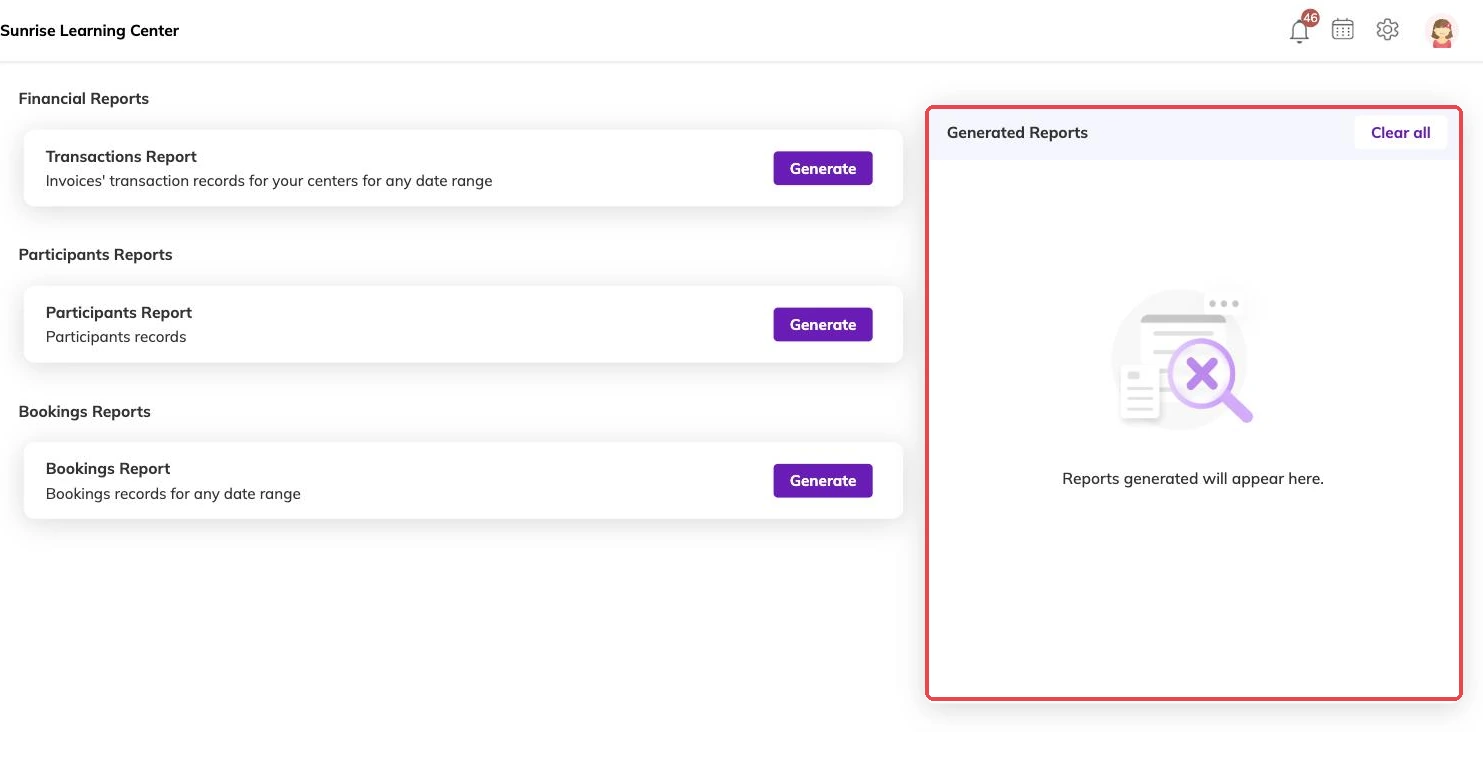
Asking for a report queues it rather than producing it on the spot. A wide date range across several centres takes a moment to assemble. It turns up in your list when it is ready, and you download the spreadsheet from there.
A report can also come back with an error. Re-run it over a narrower range or fewer centres rather than firing the same request off again.
Be clear which date the range is filtering on
The date a booking was made, the dates its sessions run and the date its invoice was raised are three different things. The same booking can land in three different months depending on which of them the report in front of you is using.
If a figure looks wrong, run it again over a wider range and compare. A total that swings wildly is usually telling you the range is the problem rather than the data.
These files leave Bookingo and do not come back
Column names use the system's own words
Your centre may call the children on your books students, members or something else entirely. The report columns do not follow that renaming. They read Participant Name and Account Name whatever is on your screens, and it is the same data underneath.
If the file is going to someone outside your team, rename the columns in the spreadsheet rather than explaining the mismatch every time.
Keeping your list tidy
Reports you have generated stay in your list until you remove them, one at a time or all at once. The list is yours rather than shared, so clearing it does not take away a colleague's.
If what you need is not in the three, write to support@mybookingo.com rather than stitching it together by hand from several exports.
More on running your day
Sharing photos and updates with families
Post a photo and a line at the end of a class, and choose who sees it before you post rather than after.
Taking attendance
Mark a register from your phone mid-session, and know what an absence does to the place, the invoice and the parent's inbox.
What your dashboard numbers actually count
Why your revenue figure is not money in the bank, why bookings look quiet mid-term, and why your screen does not match a colleague's.