Giving staff the access their job needs
What the three roles you start with actually allow, how to build one that fits a real job, and what to do when somebody leaves.
4 min read
The roles you start with are not what their names suggest
Bookingo sets your centre up with Super Admin, Centre Head and Teacher. The names describe intent. They do not describe access.
So the first job is not inviting anybody. It is opening those roles — Teacher at the very least — and taking out what that person does not need on a normal day.
How access is put together
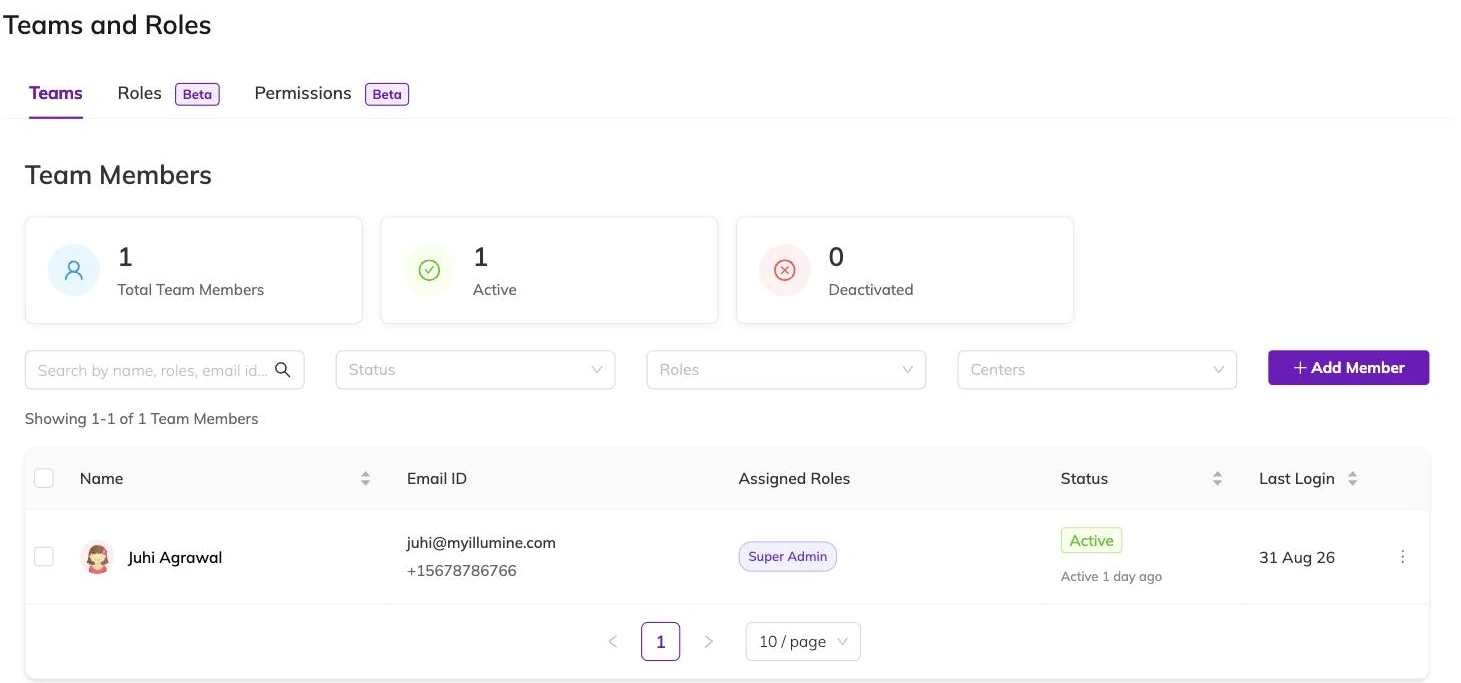
Permissions belong to the role rather than to the person. Trim the Teacher role at four o'clock and every teacher's access changes at four o'clock. Where one person needs something the others do not, give them a role of their own instead of widening the shared one. You cannot give the same person two roles at one centre — Bookingo refuses the second.
- A permission is one thing a person is allowed to do.
- A role is a named set of permissions, and the role is what you actually edit.
- A staff member holds one role per centre. Two centres means two assignments, and it can be a different role at each.
Building a role of your own
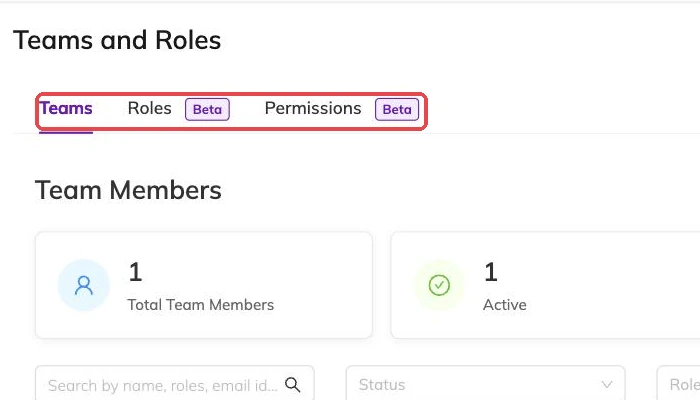
Copy an existing role and cut it down rather than starting from nothing. You are less likely to miss something people need to get through the day, and role names have to be unique, so name them after the job: Front Desk, Holiday Club Lead.
A copy does not bring everything across. Permissions covering system settings, centres and pricing are left behind, which is usually what you want. If the new role genuinely needs any of them, add them back deliberately.
Inviting someone
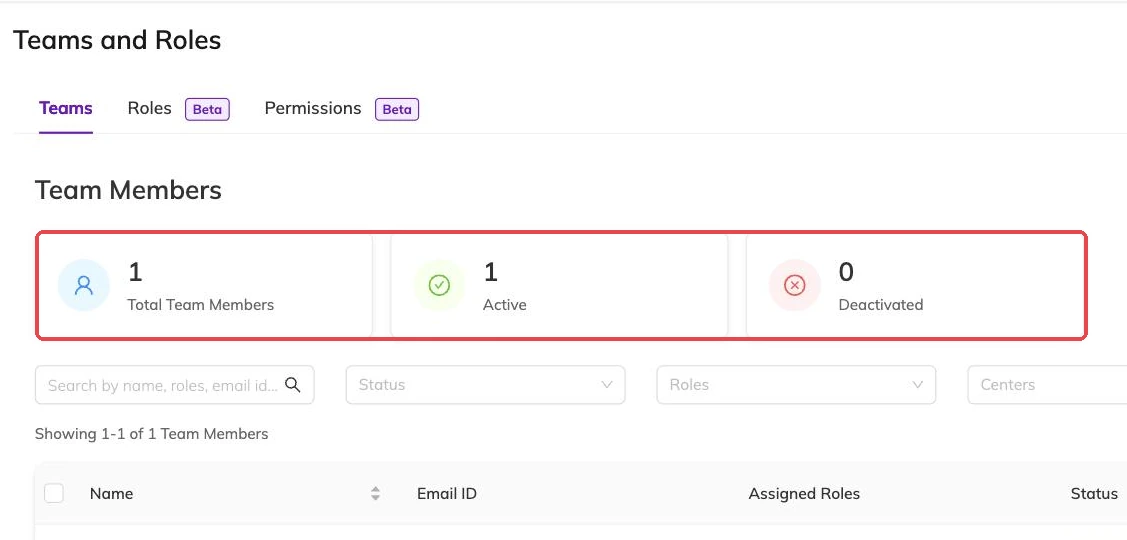
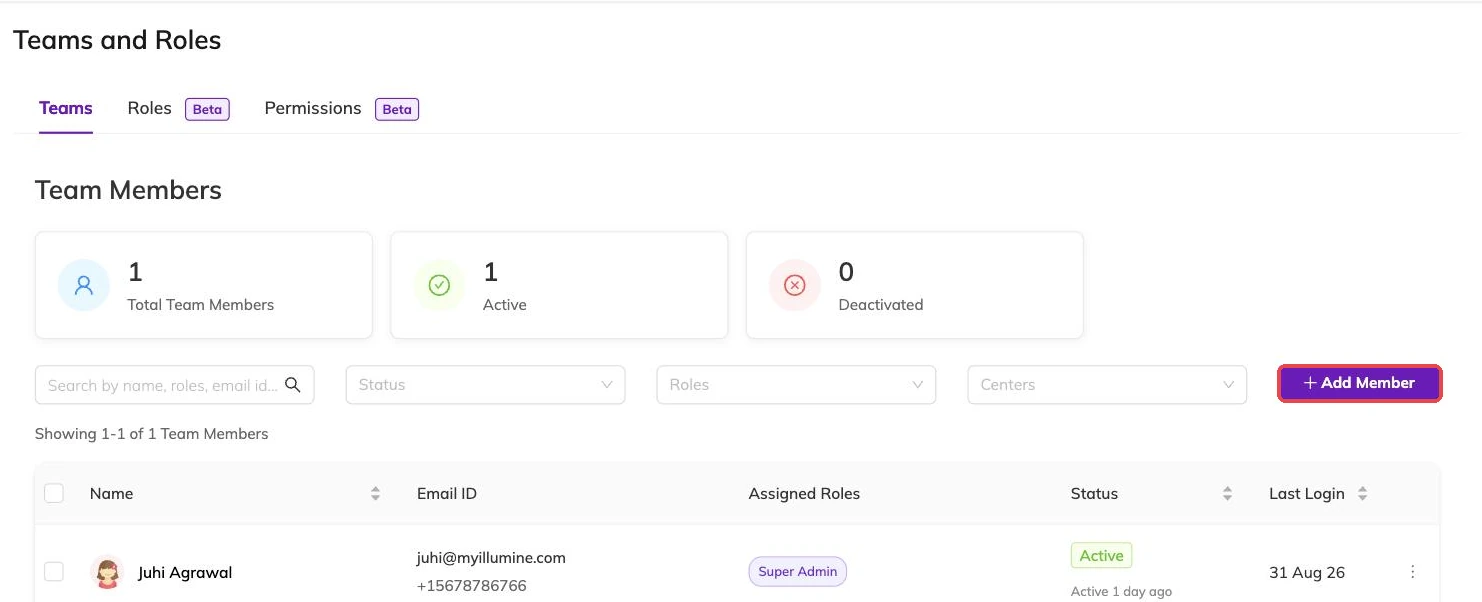
A staff member needs a name and either an email address or a phone number; Bookingo will not save one with neither. Give them their role and their centres at the same time — Restricting staff to their own centre explains what that second choice controls.
They set up their own sign-in from the invitation email, so you never handle a password for anybody. If it goes astray, send it again.
Super admins
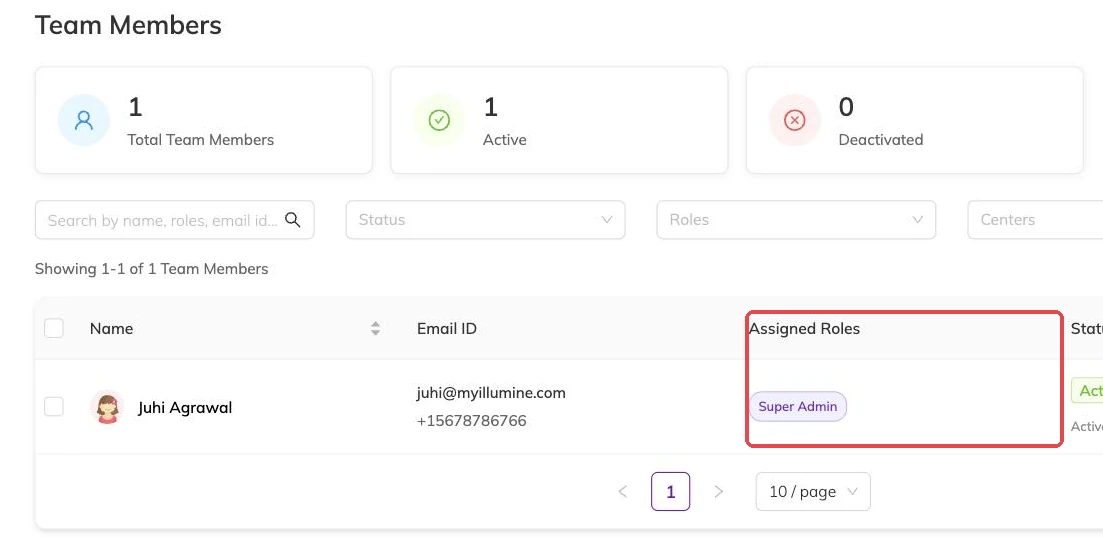
A super admin sits outside roles entirely, and cannot hold one: make somebody a super admin and the roles they had are removed. They are not limited by permissions and not limited by centre, and they are the only people who can connect external systems — see Connecting Illumine to Bookingo — or change billing settings.
Keep the list short and deliberate. More than one is sensible so you are not stuck while somebody is away. Everybody else should hold a role, even a generous one. A role can be widened in a minute; super admin cannot be narrowed at all.
When somebody leaves
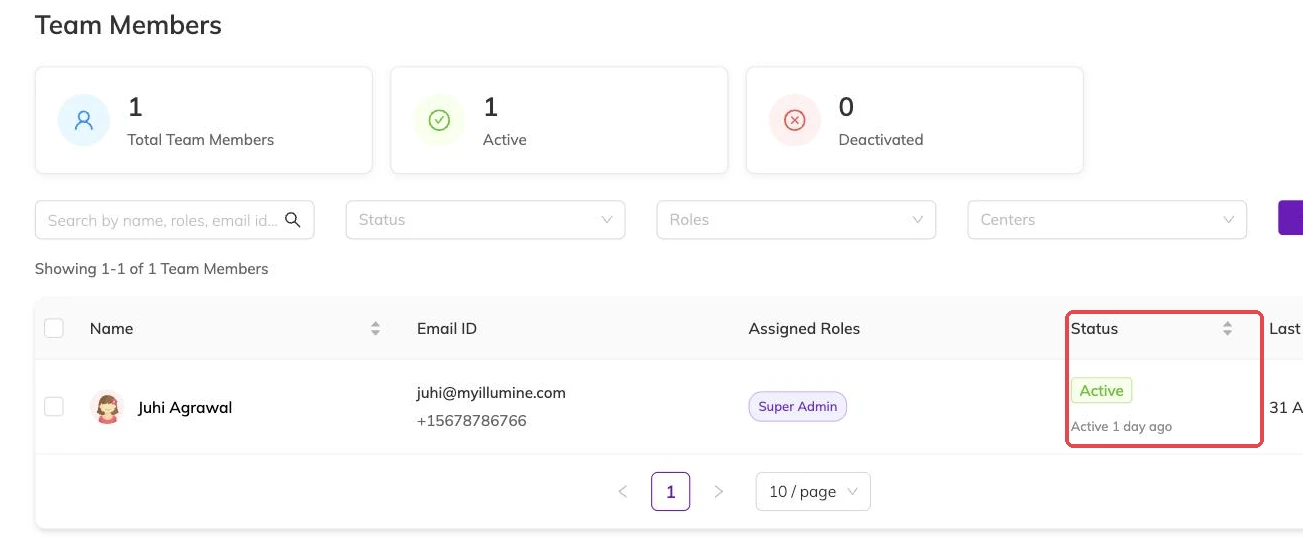
Deactivate them rather than deleting them. A deactivated staff member drops out of the lists you pick staff from, while what they did stays attached to their name: the bookings they took, the registers they marked, the notes they left on a child.
Deleting them goes further. It takes them off the upcoming sessions they were assigned to, so it changes your schedule as well as your staff list. Past records are kept either way. Deactivation is reversible, which matters for seasonal staff who come back each summer, and somebody changing job internally needs their role changed rather than a second record.
Looking at it again next term
Access drifts. People cover for each other, a role is widened for one busy week and stays that way, somebody moves site and keeps both.
The quicker check is the role list rather than the staff list. For each role, ask whether you would be comfortable with the newest person on your team holding it, because sooner or later somebody will. Then read your super admin list and ask whether it is still the list you would choose today.